This guide provides the steps required to configure SCIM 2.0-based user provisioning and OpenID Connect-based single sign-on via Azure Active Directory (Entra ID).
Features
Azure Active Directory is able to perform the following actions automatically against our platform:
- Add new users
- Update selected details on users
- Deactivate users
- Authenticate users when they log in via our web portal or apps.
The following provisioning features are supported:
- Users created through Azure Active Directory will also be created on our platform.
- Updates made to the user’s profile through Azure Active Directory will be pushed to us.
- Deactivating the user or disabling the user’s access to the application through Azure Active Directory will deactivate the user on our platform.
- Users can be imported from our platform into Azure Active Directory
Prerequisites
Before you configure provisioning, check the following in your platform account:
1 – Ensure you have added our Enterprise Toolkit option to your account, since this unlocks our Azure Active Directory integration options. Enterprise Toolkit can be enabled via the Billing page in the platform.
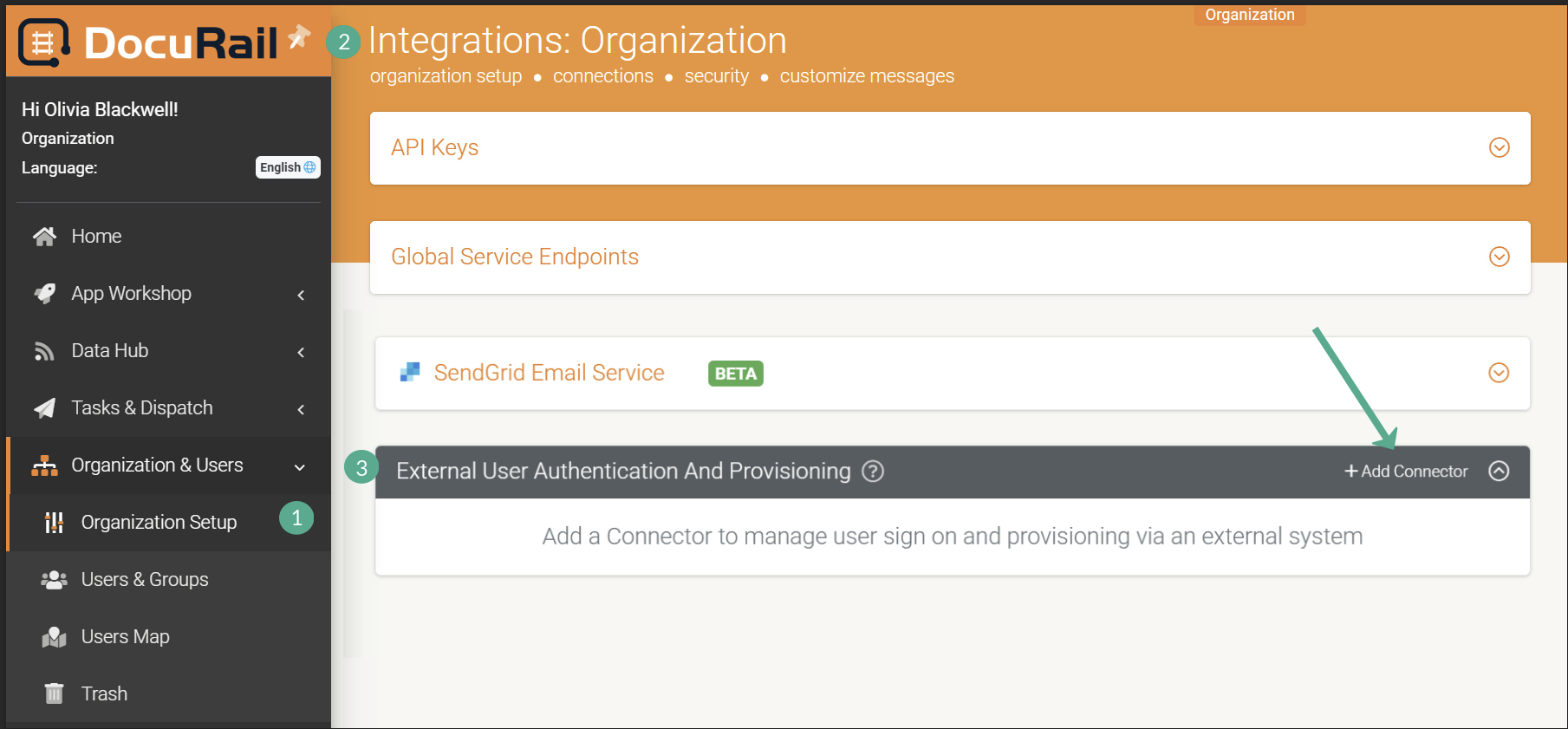
2 – Once Enterprise Toolkit is enabled, navigate to Side Menu > Organization Setup > Integrations and find the section titled External User Authentication & Provisioning. Click the Add Connector link and select the Azure Active Directory option from the list of available connectors – this will save the page and reload it.
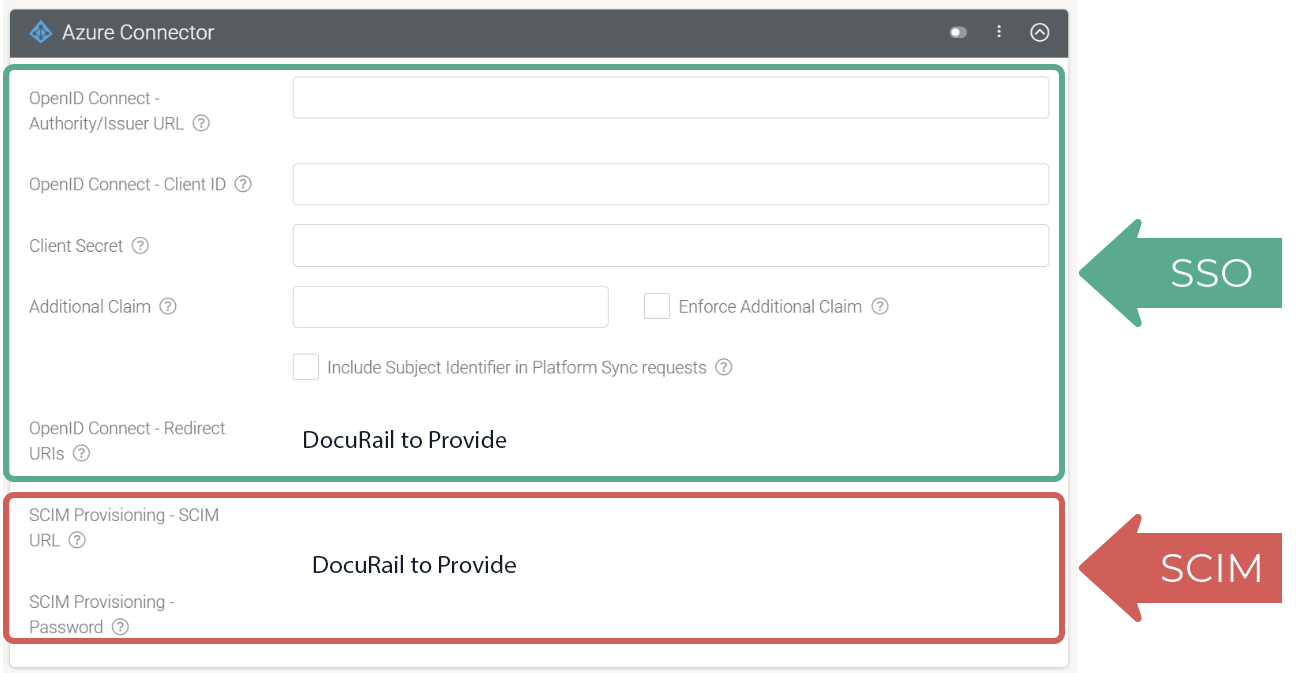
3 – Make note of the SCIM URL, User Name, Password, and OpenID Connect Login Redirect URI values that display on the Azure Active Directory connector details. You will need these for the Azure Active Directory configuration steps below.
Configuring User Provisioning through Azure AD (via SCIM)
Our platform supports a SCIM profile that can be connected to Azure Active Directory using the Non-gallery application feature in the Azure AD application gallery. Once connected, Azure AD runs a synchronization process every 40 minutes where it queries the application’s SCIM endpoint for assigned users and groups and creates or modifies them according to the assignment details.
Create an Application in Azure
The following steps to create an application and configure provisioning are the initial steps in configuring SCIM.
1 – Sign in to your Azure portal.
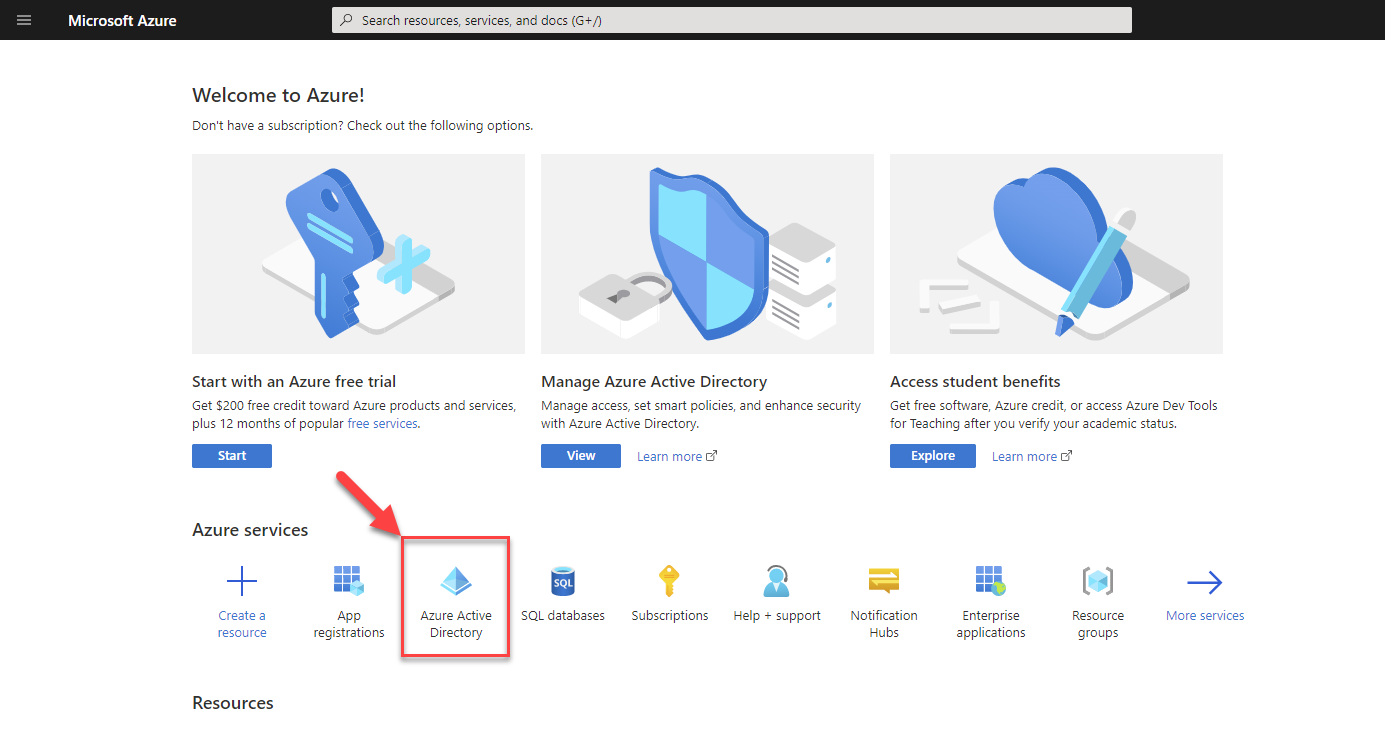
2 – Browse to Azure Active Directory > Enterprise Applications, and Create your own application (a new non-gallery application).
Enter a name for your app, and under the option What are you looking to do with your application, tick:
- Integrate any other application you don’t find in the gallery (non-gallery)
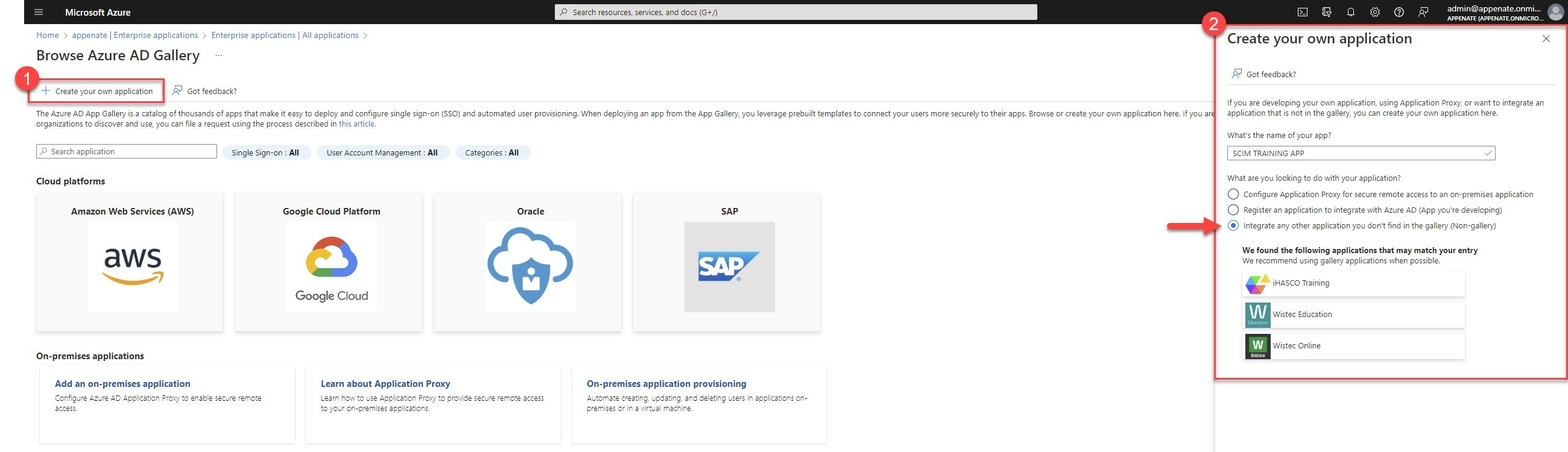
Then click Create. Once the application is created, user provisioning and scopes need to be set.
Provision Application Users
1 – When viewing the application, select Provisioning on the left and Get Started.
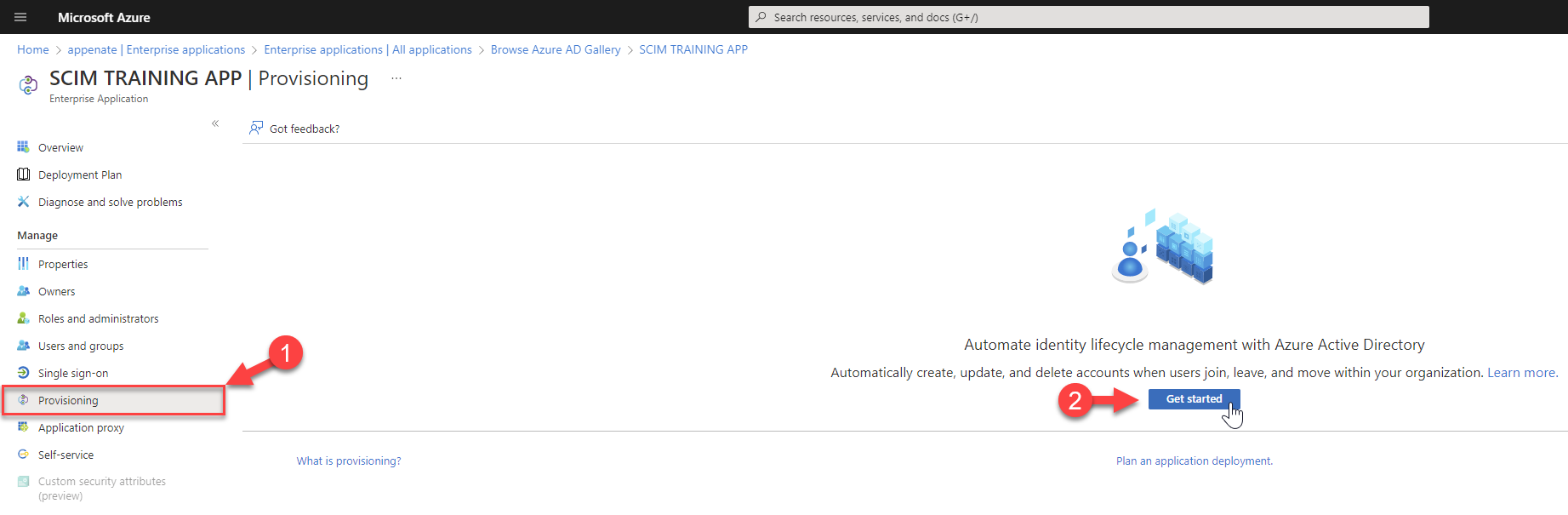
2 – In the Provisioning Mode menu, select Automatic.
And copy the Tenant/SCIM URL and Secret Token/Password from your account’s Organization Setup > Integrations page, under External User Authentication And Provisioning, Azure Connector.
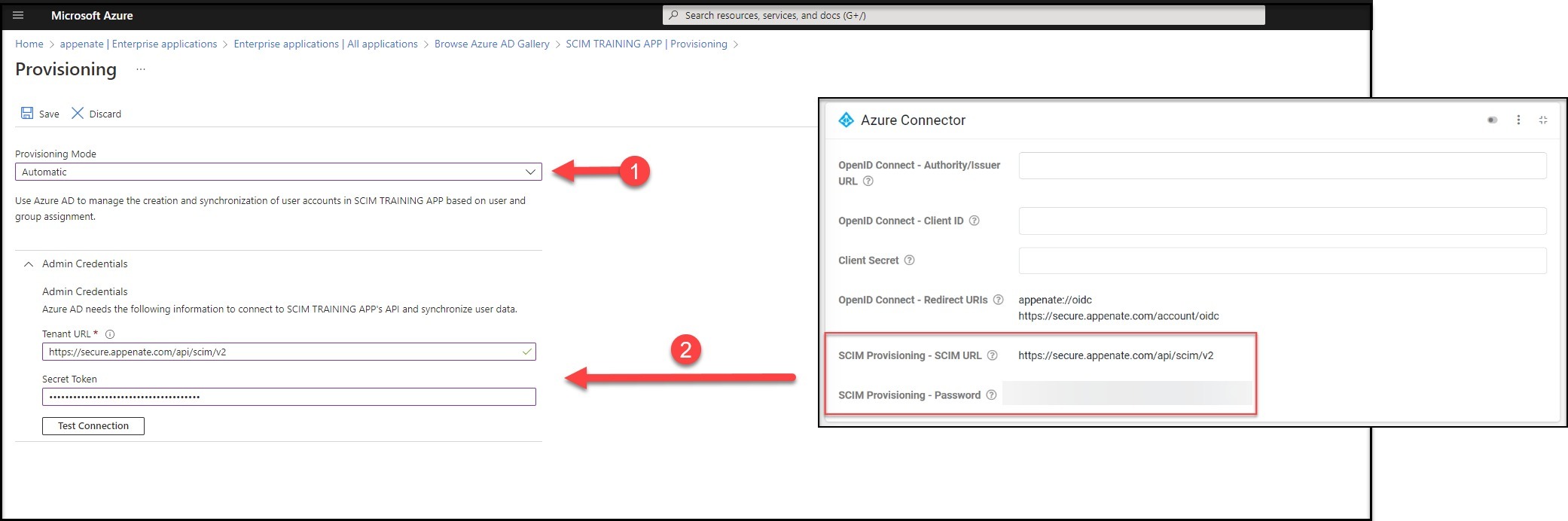
Click the Test Connection button to have Azure Active Directory attempt to connect to the SCIM endpoint.
If the attempt fails, error information is displayed.
If the connection attempt is successful, click Save to save the admin credentials.
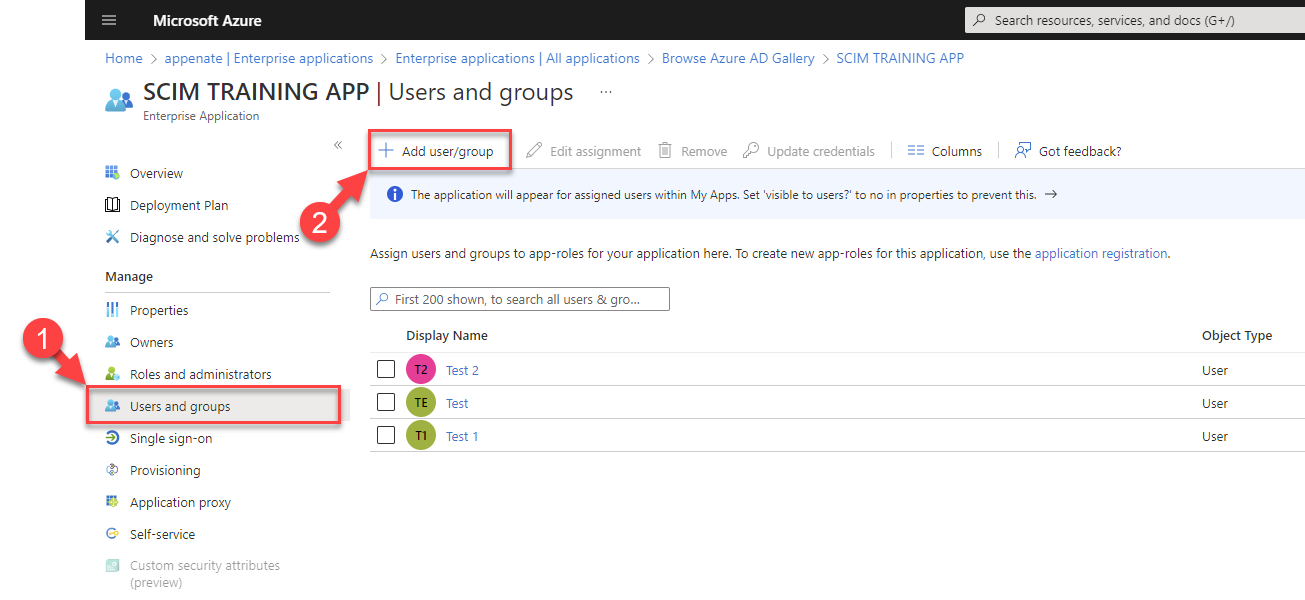
3 – Next, add users.
When viewing the application, select Users and Groups, and Add users to assign to the app that’ll be provisioned through to our platform.
4 – Finally, when viewing the application, select Provisioning to set the scope and status.
Scope: Sync only assigned users and groups
Status: On
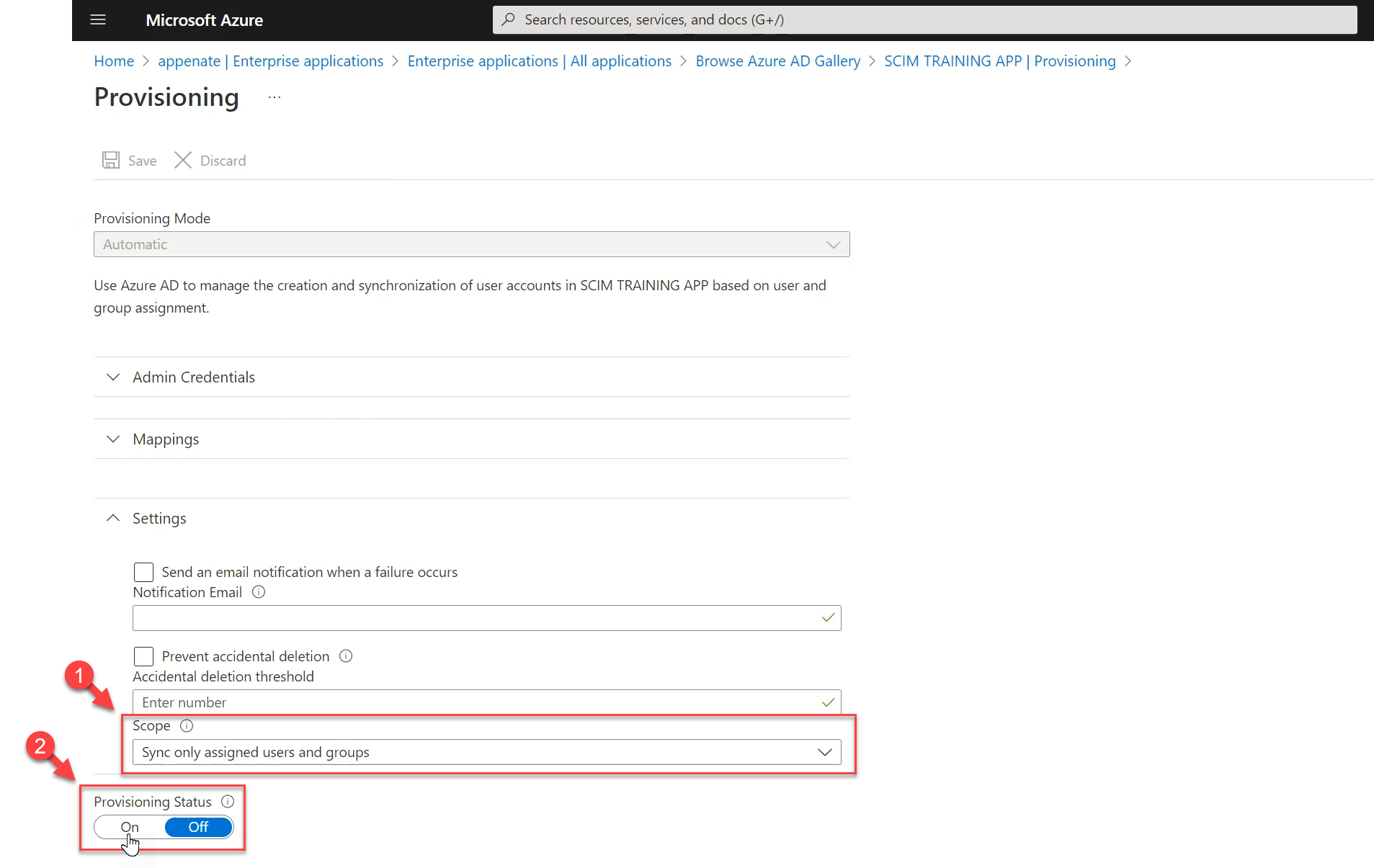
Once the initial synchronization has started, you can use the Audit logs tab to monitor progress, which shows all actions performed by the provisioning service on your app. You should also see the users and groups appearing/updating in our platform under the Users & Groups area.
Configuring Single Sign-On (OIDC Identity Provider)
Register App
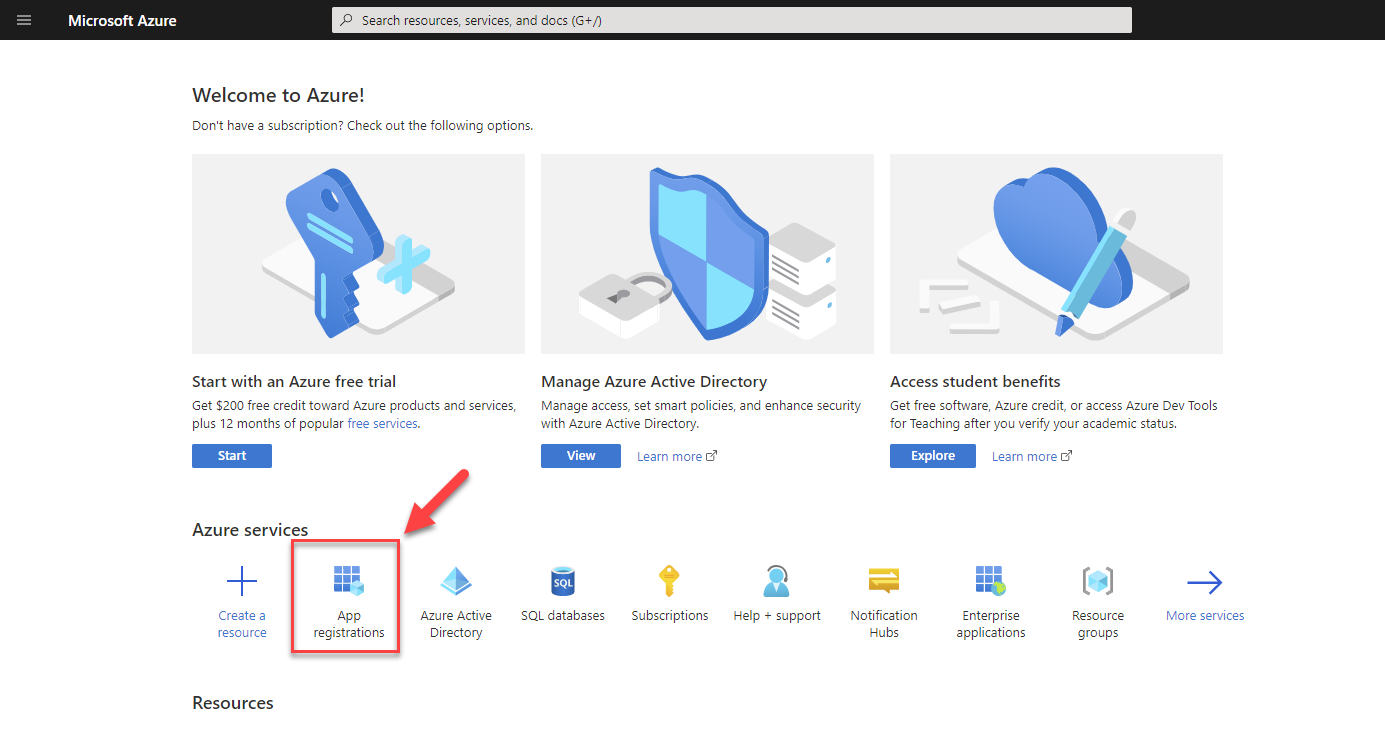
1 – Sign in to your Azure portal and navigate to Azure Active Directory > App registrations.
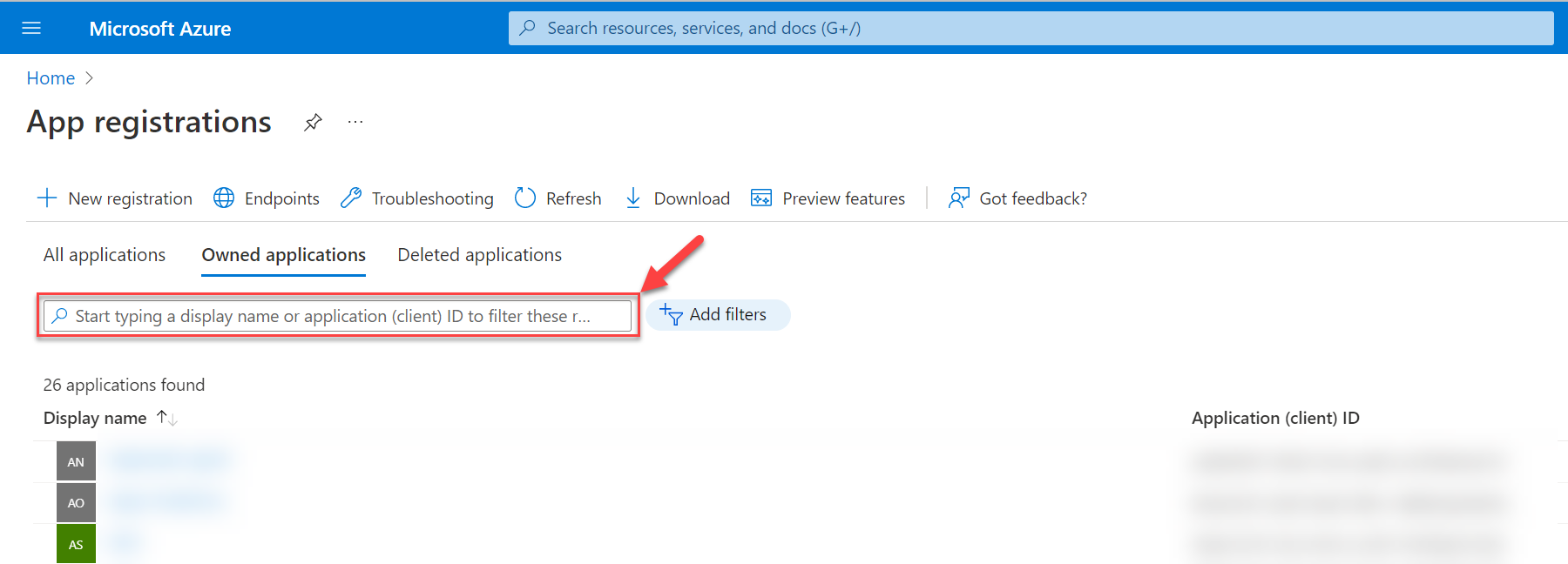
2 – Select the app that was created for the SCIM Provisioning.
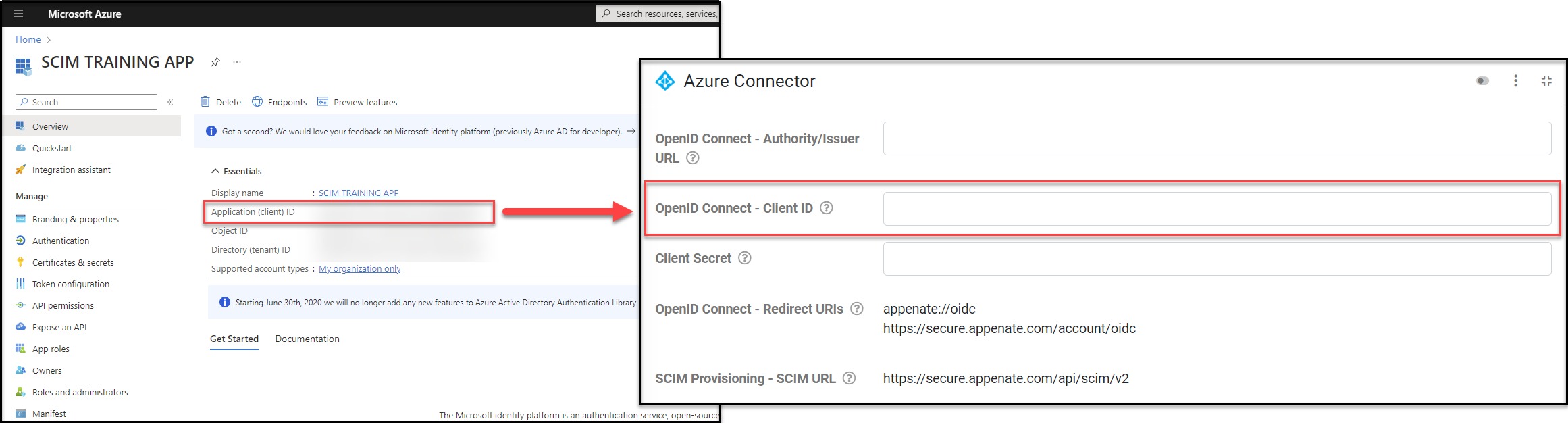
When viewing the app’s overview, under the Essentials section. Two of three Azure Connector’s properties can be acquired.
- Application (client) ID – OpenID Connect – Client ID
- Directory (tenant) ID – OpenID Connect – Authority/Issuer
OpenID Connect – Client ID
OpenID Connect – Authority/Issuer
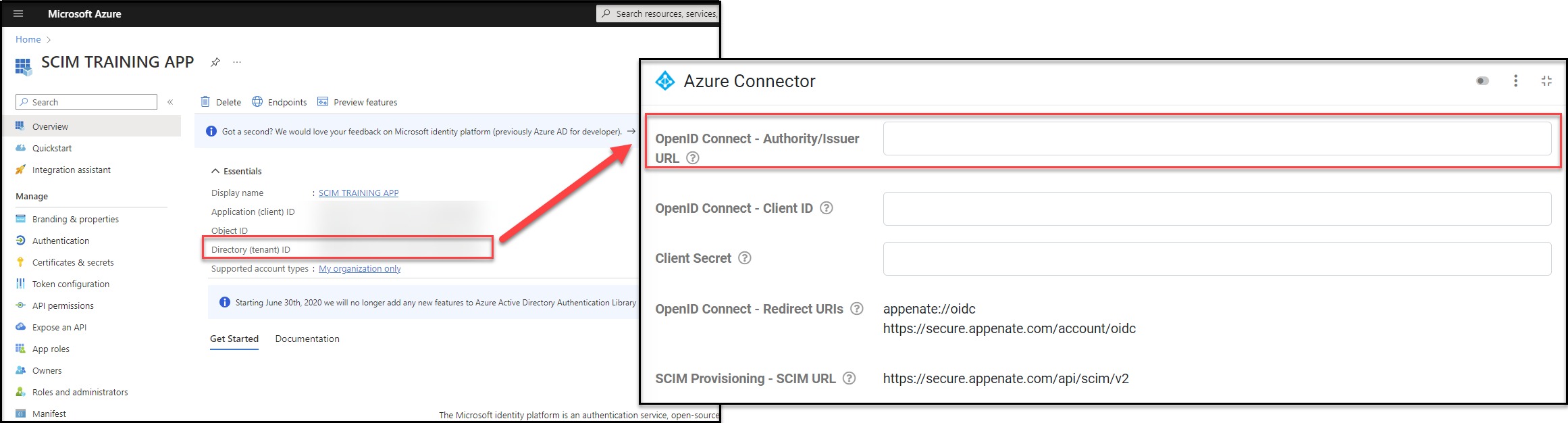
Copy the Directory (tenant) ID and combine it with the default azure login URL. https://login.microsoftonline.com/{tenant}.
Example:
https://login.microsoftonline.com/FFFFFFFF-GGGG-HHHH-IIII-JJJJJJJJJJJJ
Copy this complete tenant url, and paste that into the OpenID Connect – Authority/Issuer URL property.
Then moving on to a few left-side menu areas that will need to be configured.
- Authentication
- Certificates and Secrets
- API Permissions
Authentication
Starting with authentication. You’ll need to add platforms for:
- Web
- Mobile and desktop applications
Web Platform
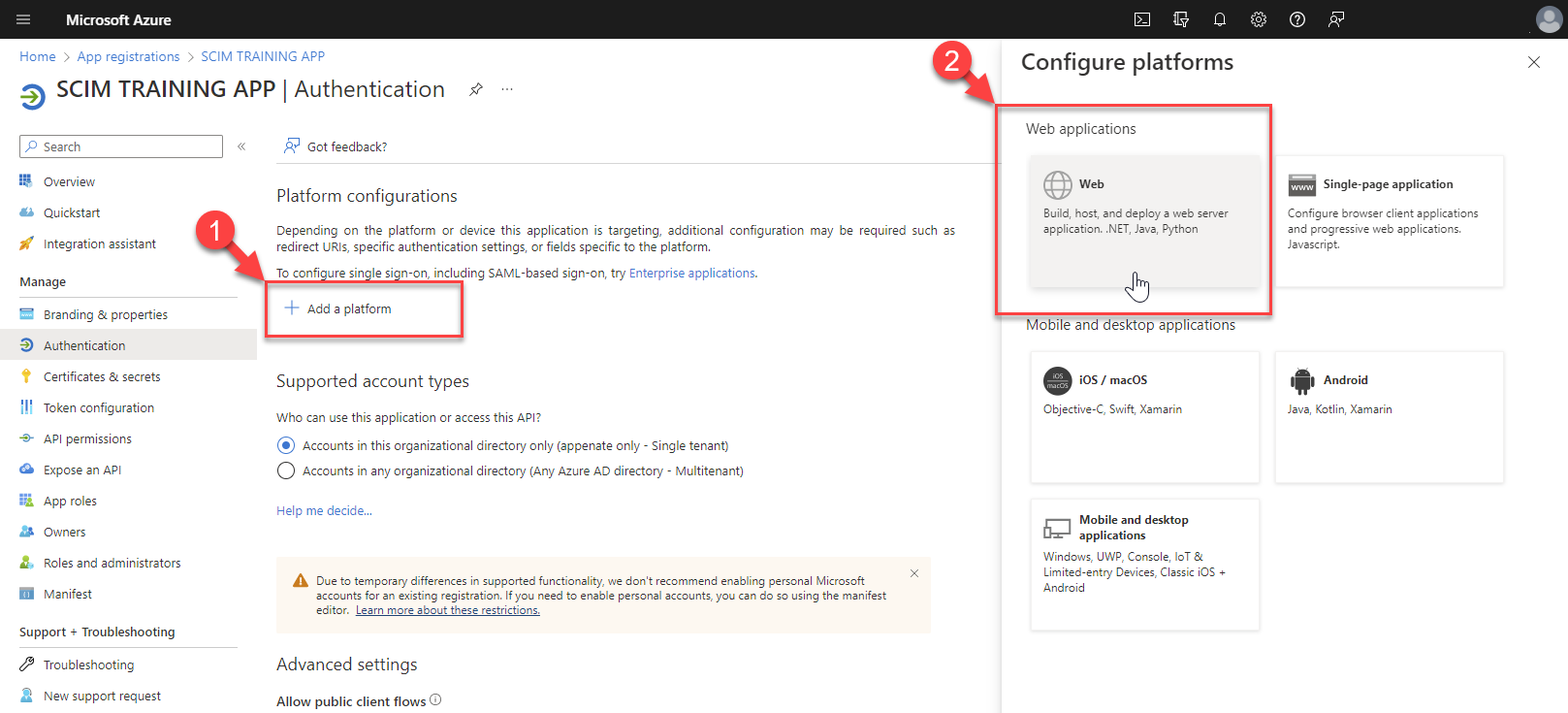
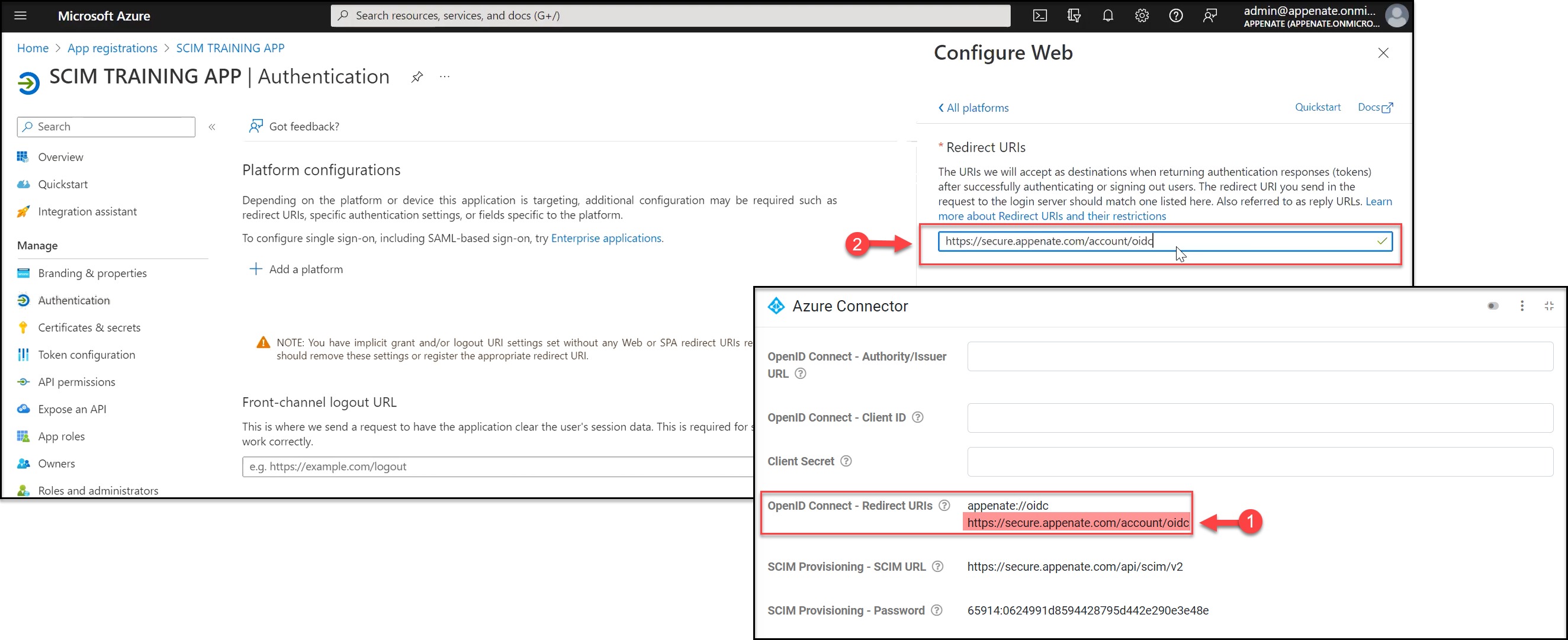
When adding a Web platform and required to enter a Redirect URI. This URI is acquired from our portal on the properties of the connector, Open Connect Redirect URIs (Organization Setup > Integrations > Azure Connector).
Mobile and Desktop Applications Platform
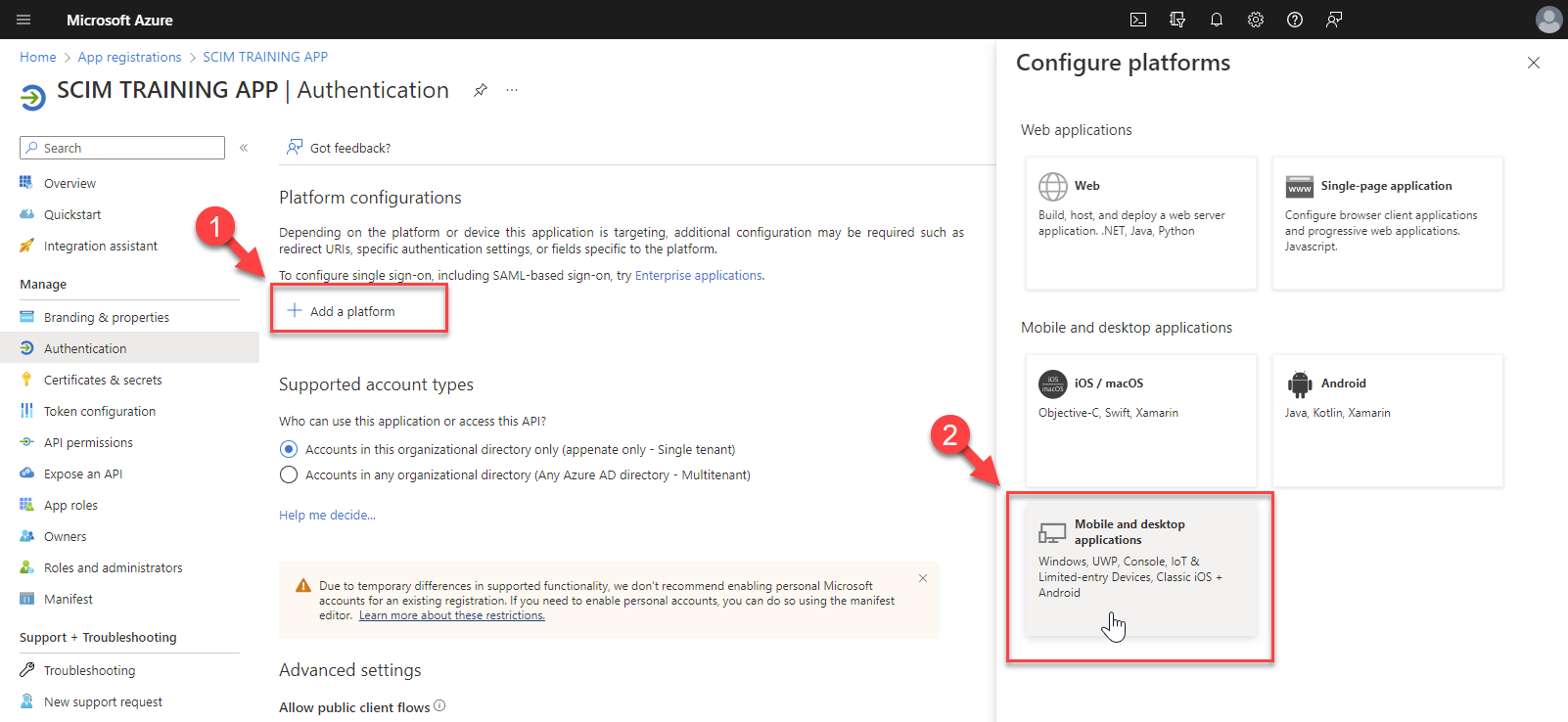
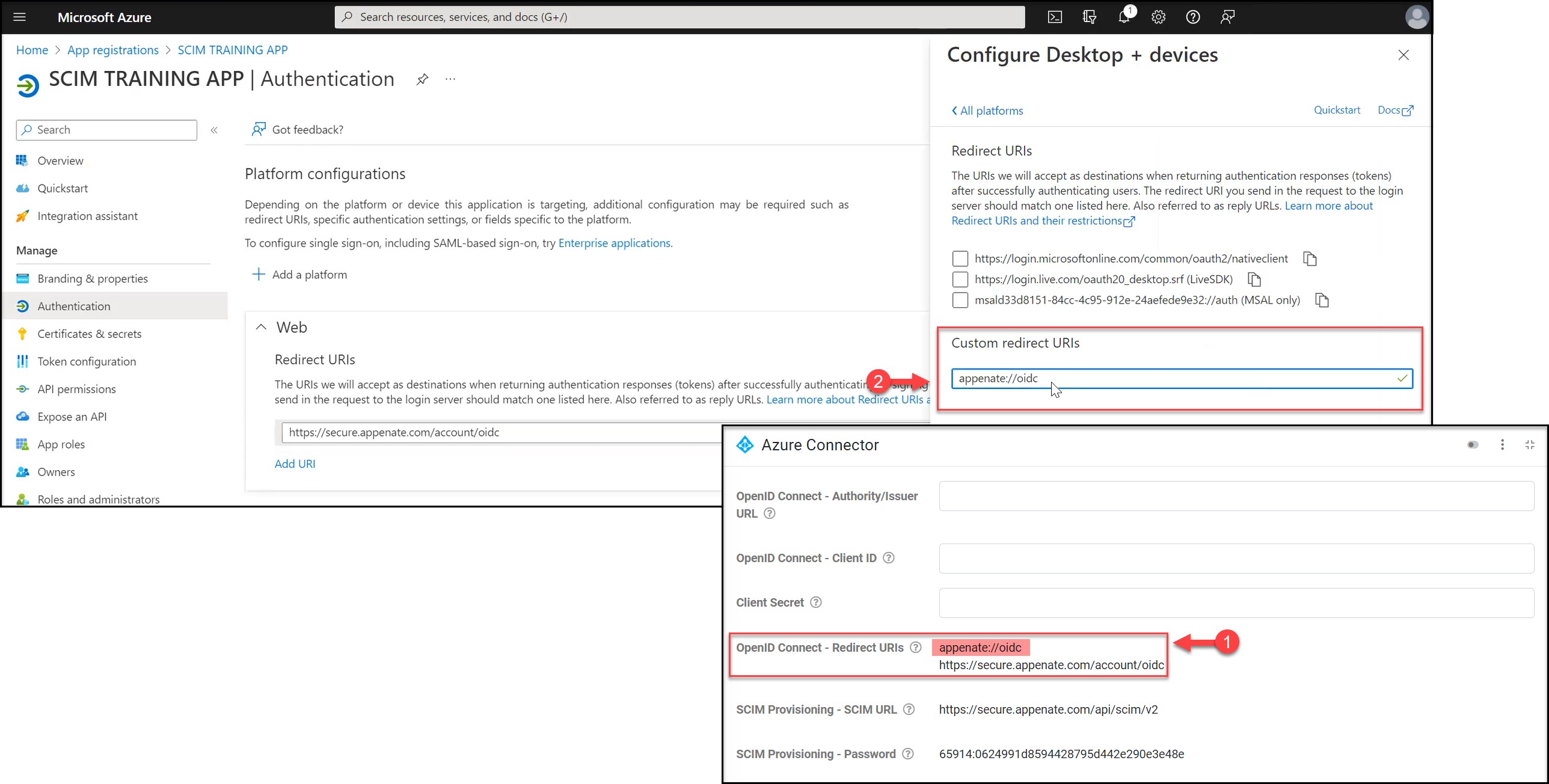
When adding a Mobile and Desktop platform and required to enter a Redirect URI. This URI is acquired from our portal on the properties of the connector, Open Connect Redirect URIs (Organization Setup > Integrations > Azure Connector).
Certificates and Secrets (Client Secret)
Then to acquire the Client Secret for the Azure Connector.
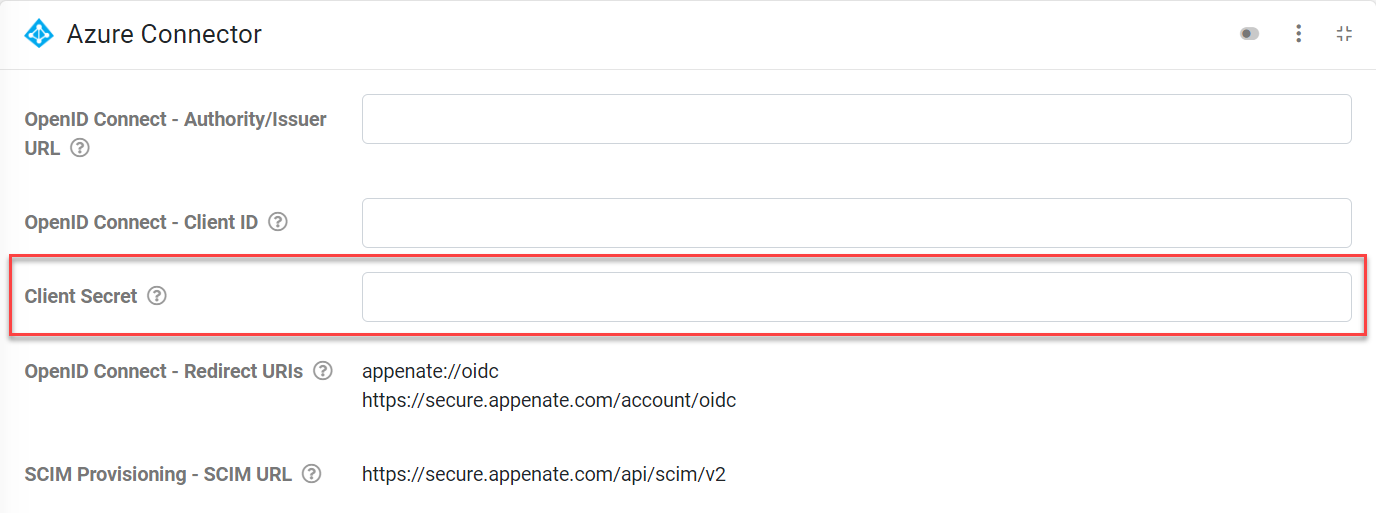
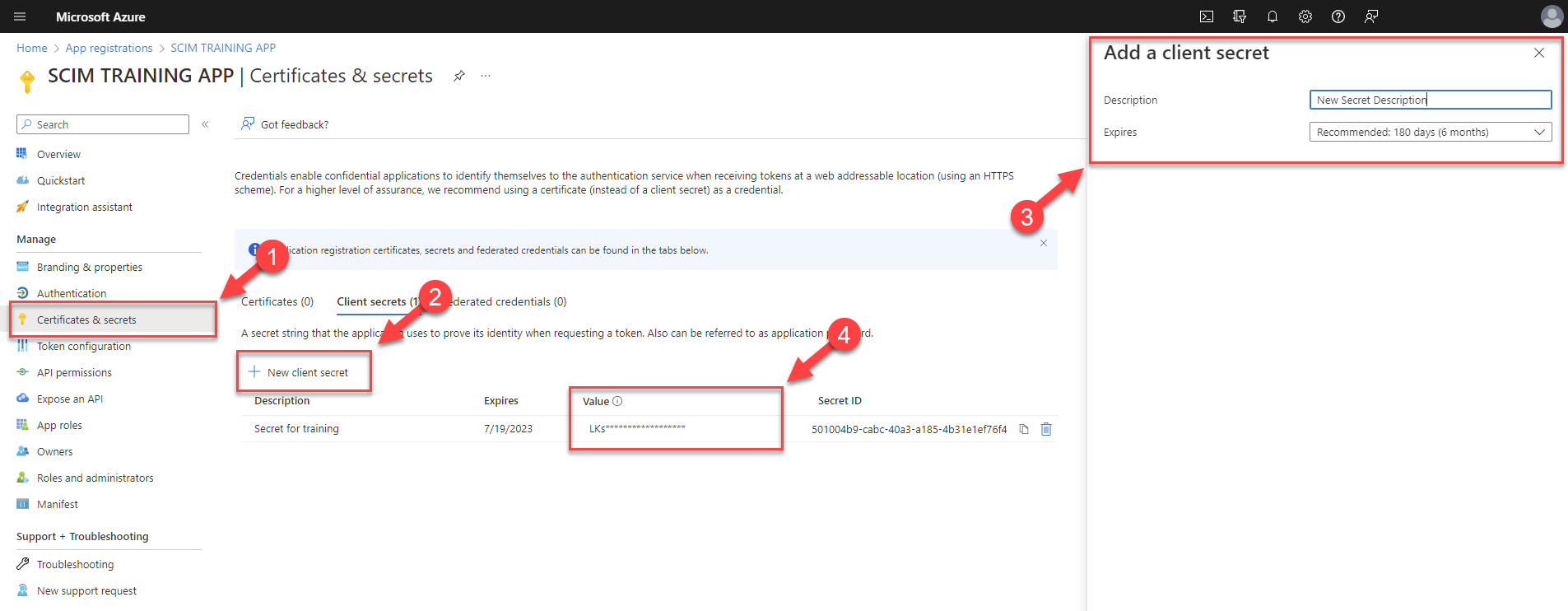
While registering the app, navigate to Certificates and secrets, and add a new client secret to obtain the Secret’s Value/Client Secret. When creating a new secret, the secret’s value is what’s needed, so be sure to copy ‘n paste it immediately into the Azure Connector or save it for future use.
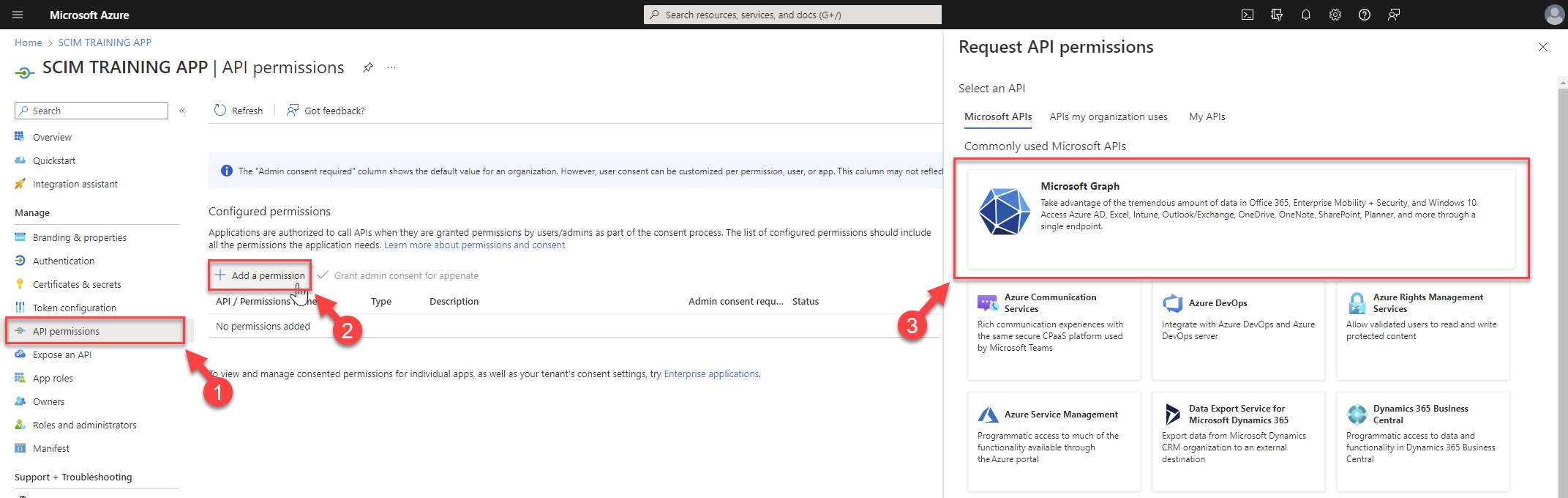
API Permissions
Finally, add permissions. On the API permissions page, click on the Add a permission option, then select the Microsoft Graph section.
When viewing the Request API permissions. What type of permissions does your application require? Set this to Delegated permissions and then search and tick the Selected permissions User.Read.
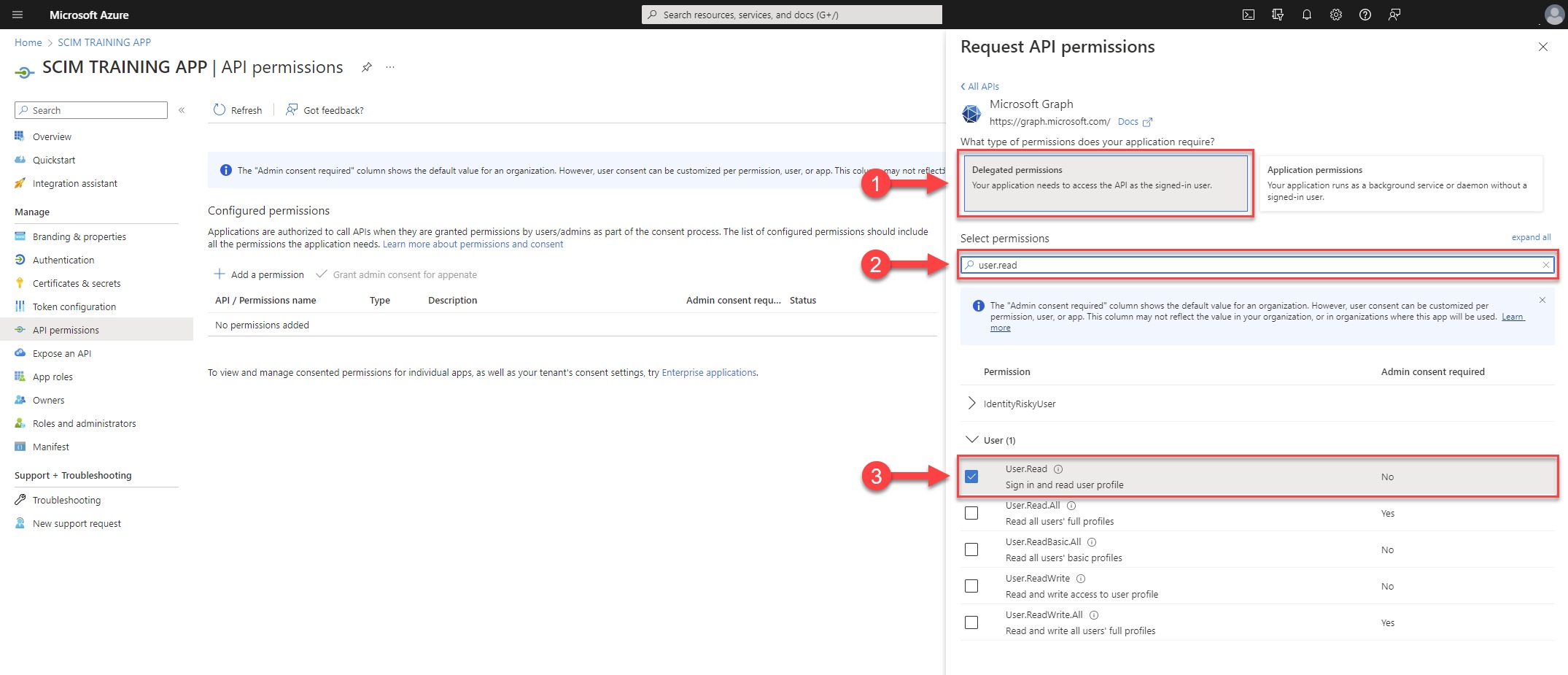
After the User.Read permission has been added. You might be prompted that the permissions have changed and that one of your azure admins will need to give consent. If this happens, one of your admins will need to click on the Grant Consent button in order for the changes to take effect. This can be found on the same API Permissions page.
You can now assign people to the app (if needed) and finish the application setup.
Setup Attribute Mapping
The following required values for provisioning must be specified on Azure Active Directory users in order for them to successfully provision on our platform:
- First Name
- Last / Family Name
- Email (this must be unique per user since it is used as our username
Assigning the user type to Azure Active Directory Users
In the Provisioning section of the Enterprise Application, there is an option to Update credentials. Select this option.
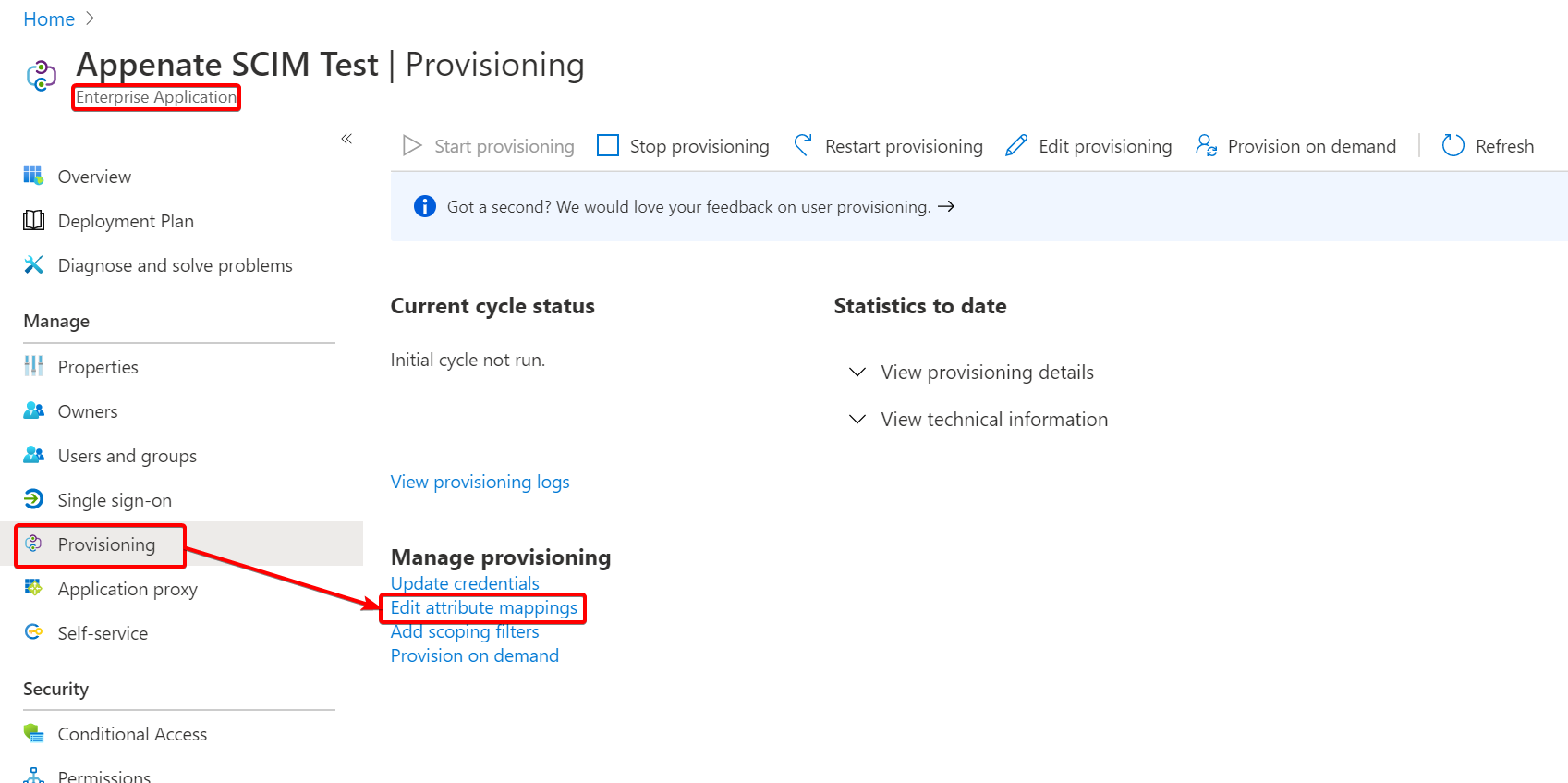
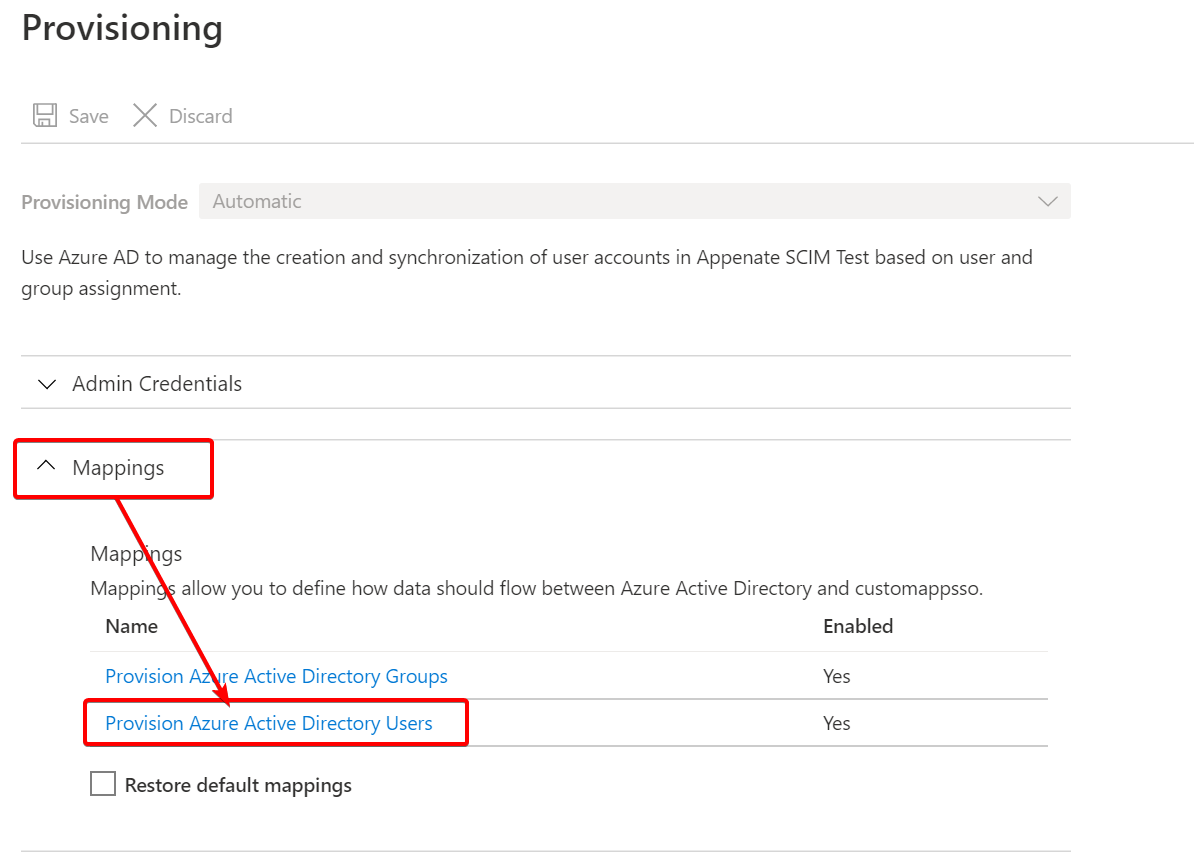
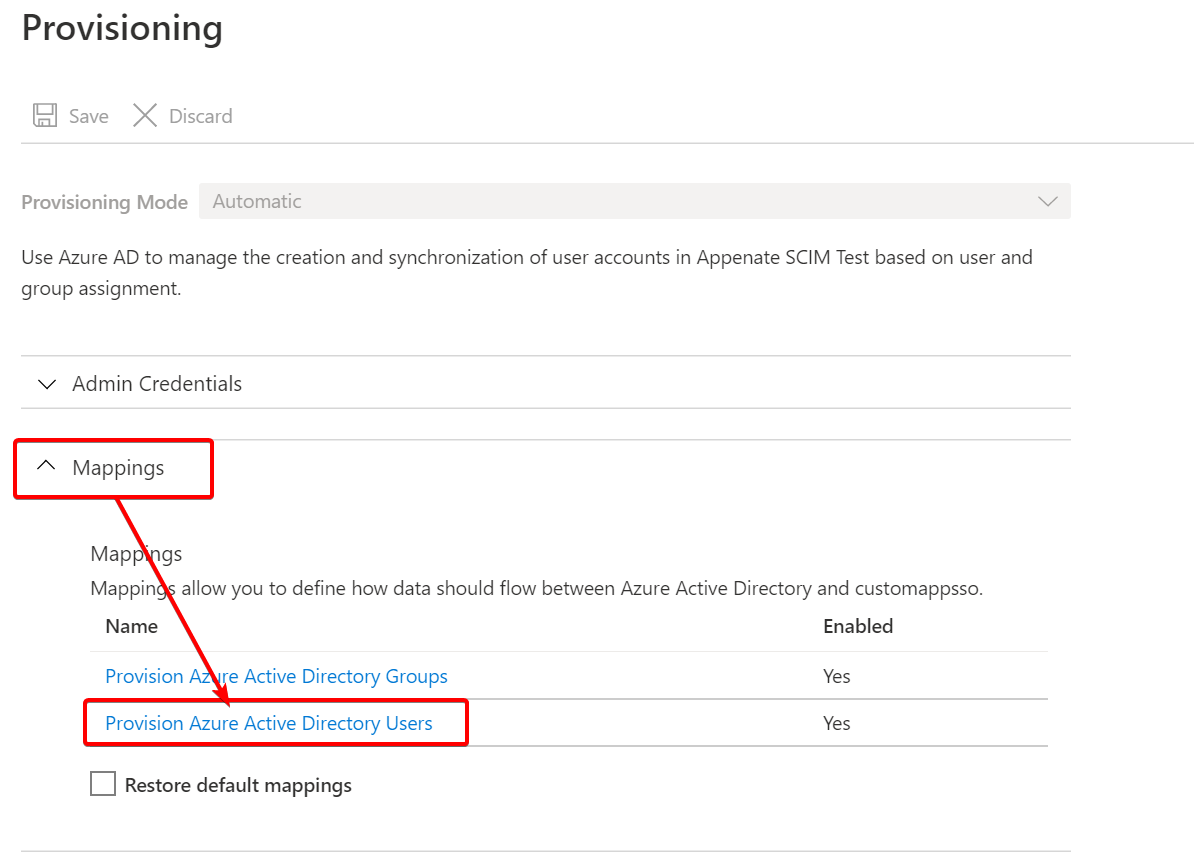
Give the page some time to load, and then select Mappings and then Provision Azure Active Directory Users.
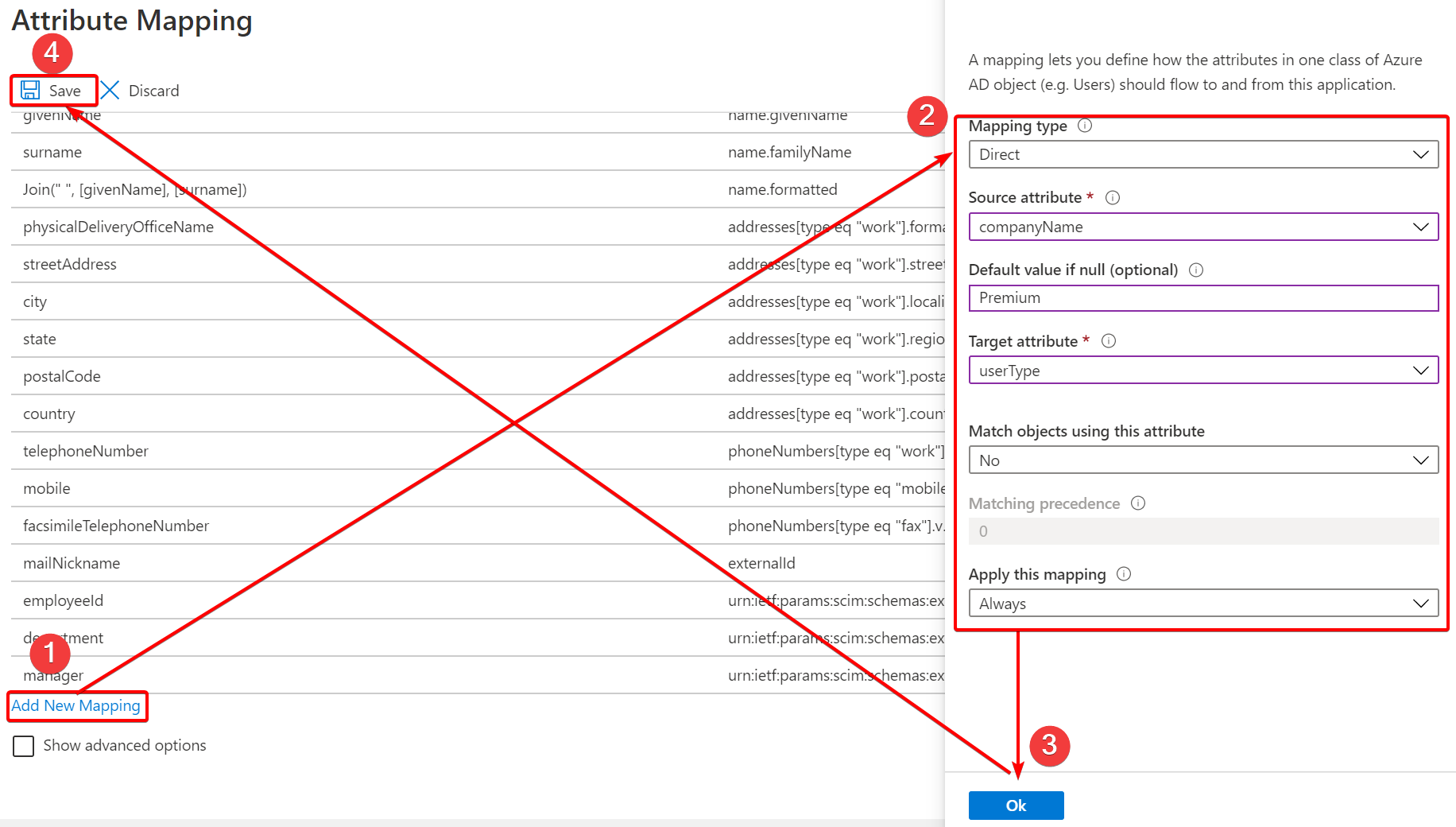
Click on Add New Mapping and set the attribute properties as follows:
- Mapping type: Direct
- Source attribute: The attribute on your user from where this property must come from. We just used the Company Name as an example. You could use any property you have configured in your Azure Active Directory.
- Default Value: Premium or Standard. We recommend setting at least one otherwise users may not provision correctly if a null value is provided to our platform.
- Target attribute: userType
- Match objects using this attribute: No
- Apply this mapping: Always
When setting this property’s values on your users, ensure it is set to exactly Premium or Standard otherwise the user may not be provisioned.
Finally, click OK, and then Save. The users should now be provisioned with the correct user type.
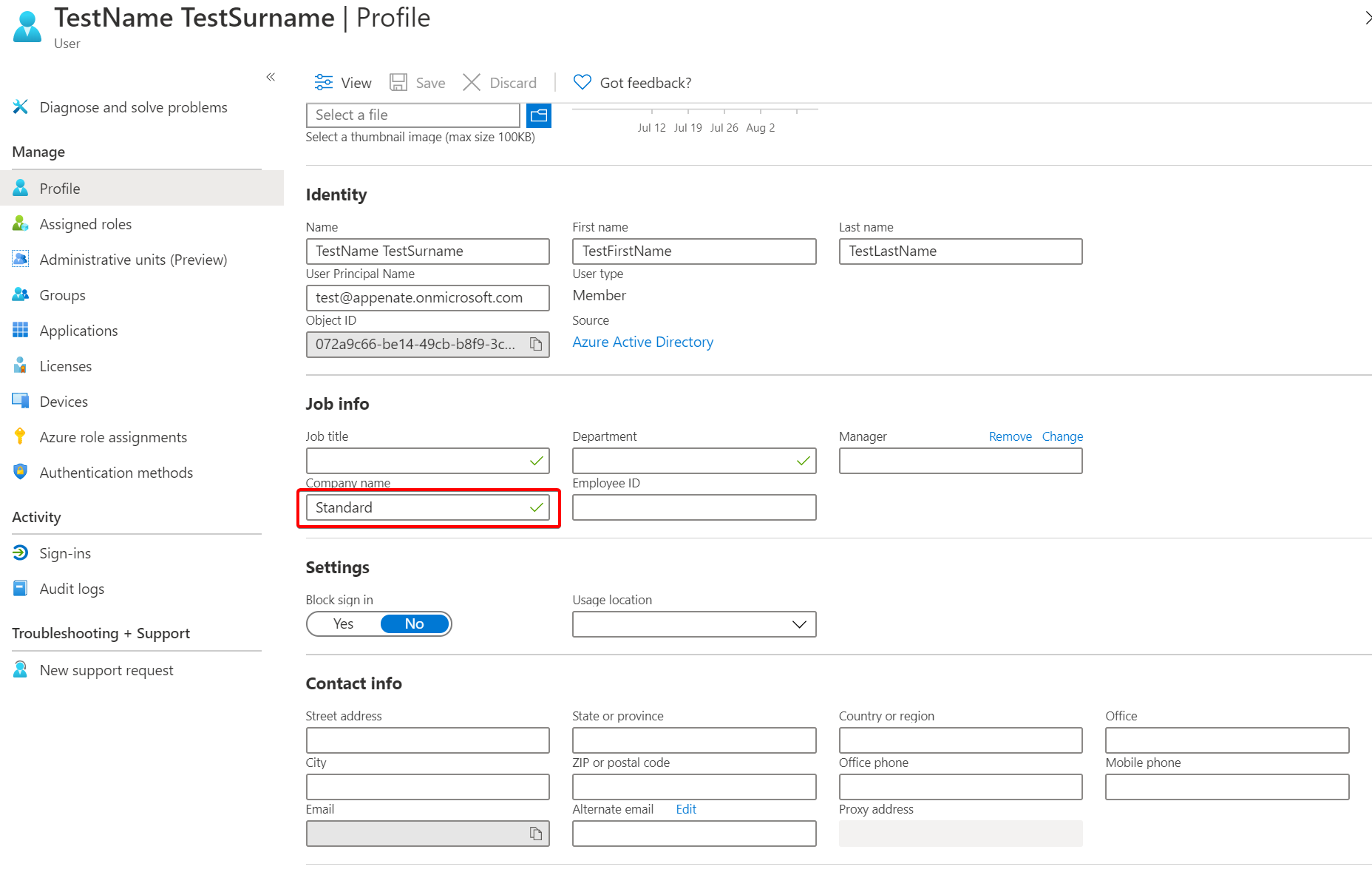
We have used “Company name” in this example, but you can use any attribute set on your user, including customer attributes you have setup on your Azure AD
Below is an example of our test user.
Assigning Users to a Group
It is possible to create groups in Entra ID (Azure AD) and then have these groups available to use on our platform. The instructions below demonstrate how to achieve this in Entra ID.
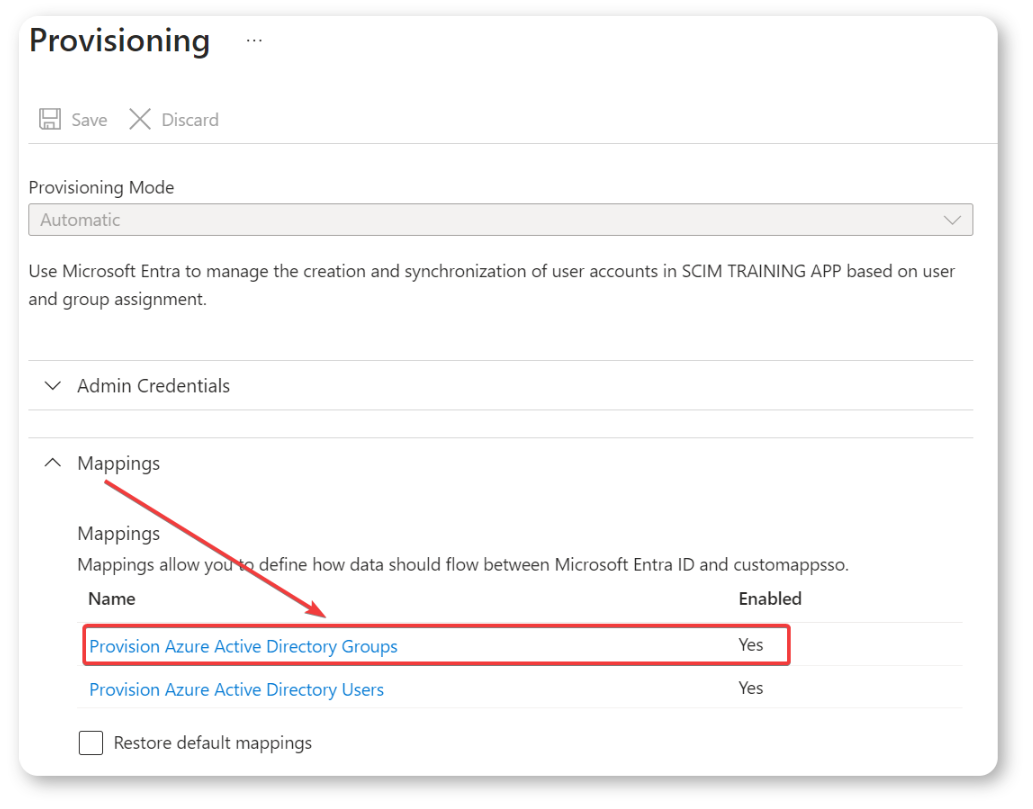
In the Mappings section of Entra ID, click on the link “Provision Azure Active Directory Groups” as shown in the screenshot below:
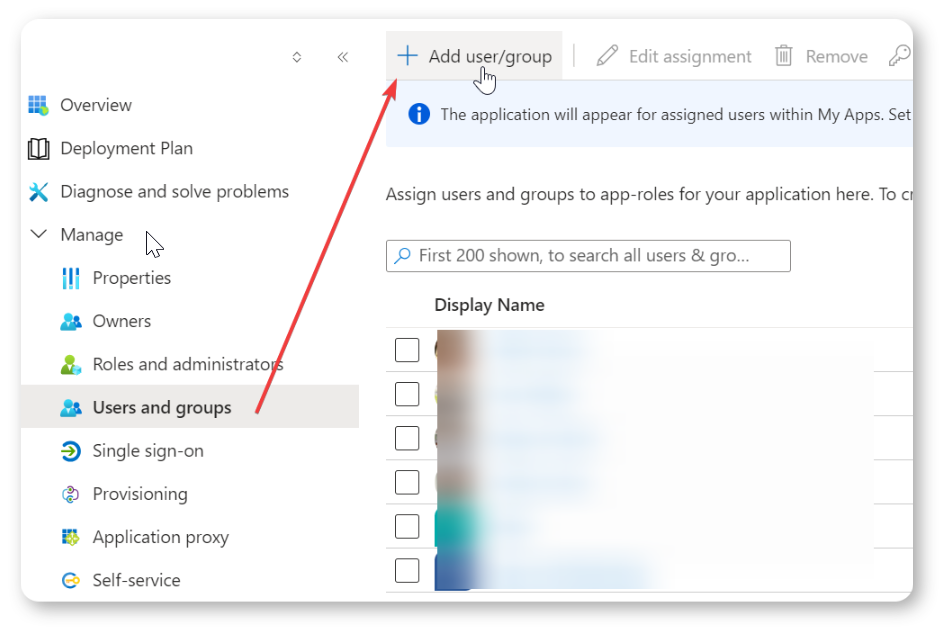
Click on the “Users and groups” link in the menu and then click on the “Add user/group” tab as shown in the screenshot below:
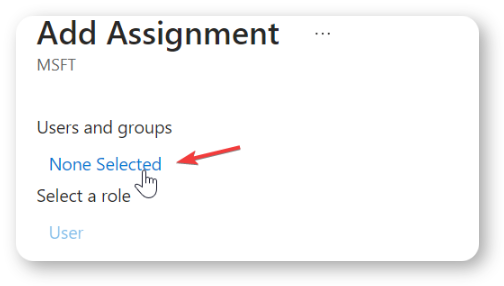
Under the “Add Assignment” section, you will find a link “None Selected” (as you have not added any users to the group yet) under the “Users and groups” section. Click the “None Selected” link to add users to the group or select a pre-existing group to assign all that group’s users.
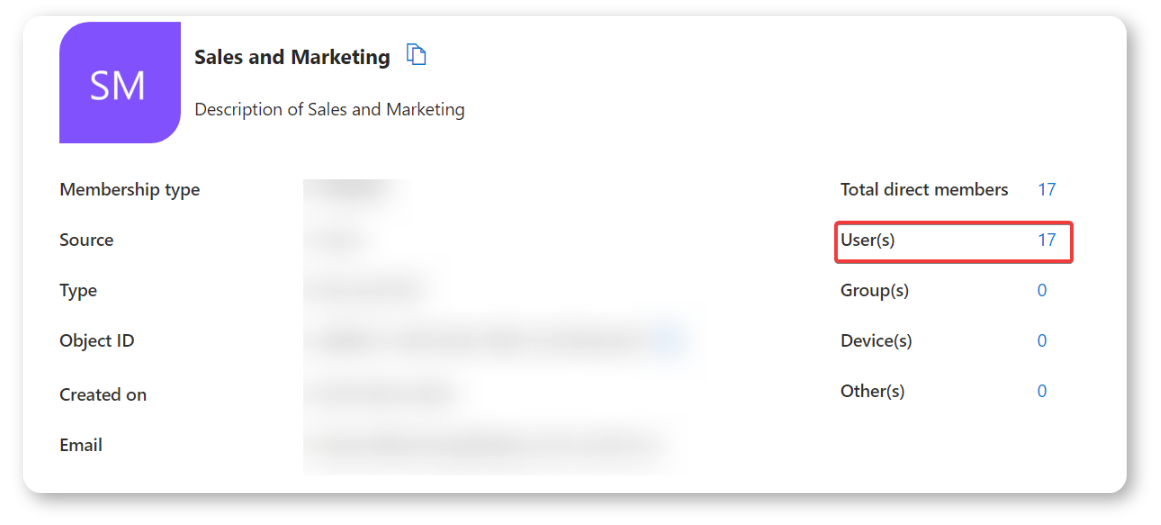
For this scenario, we will select the pre-existing user group “Sales and Marketing” as shown in the screenshot below:
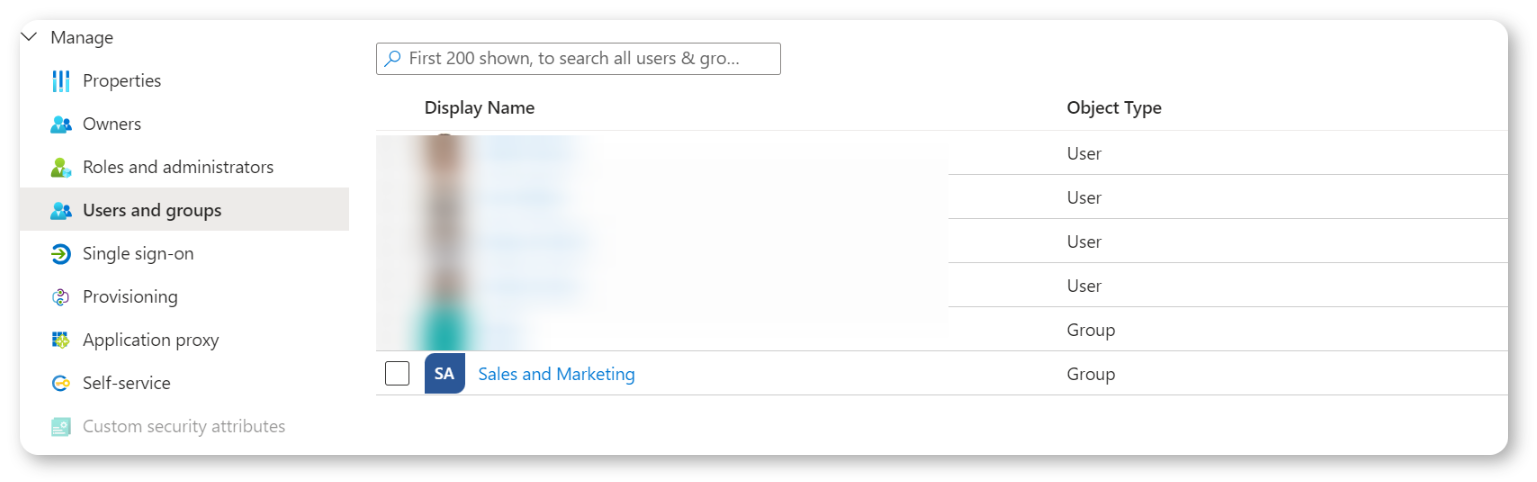
In the screenshot below we show that this group has 17 users assigned to it, this is important as we will show how these users are also automatically assigned to the group that is created on our platform’s side.
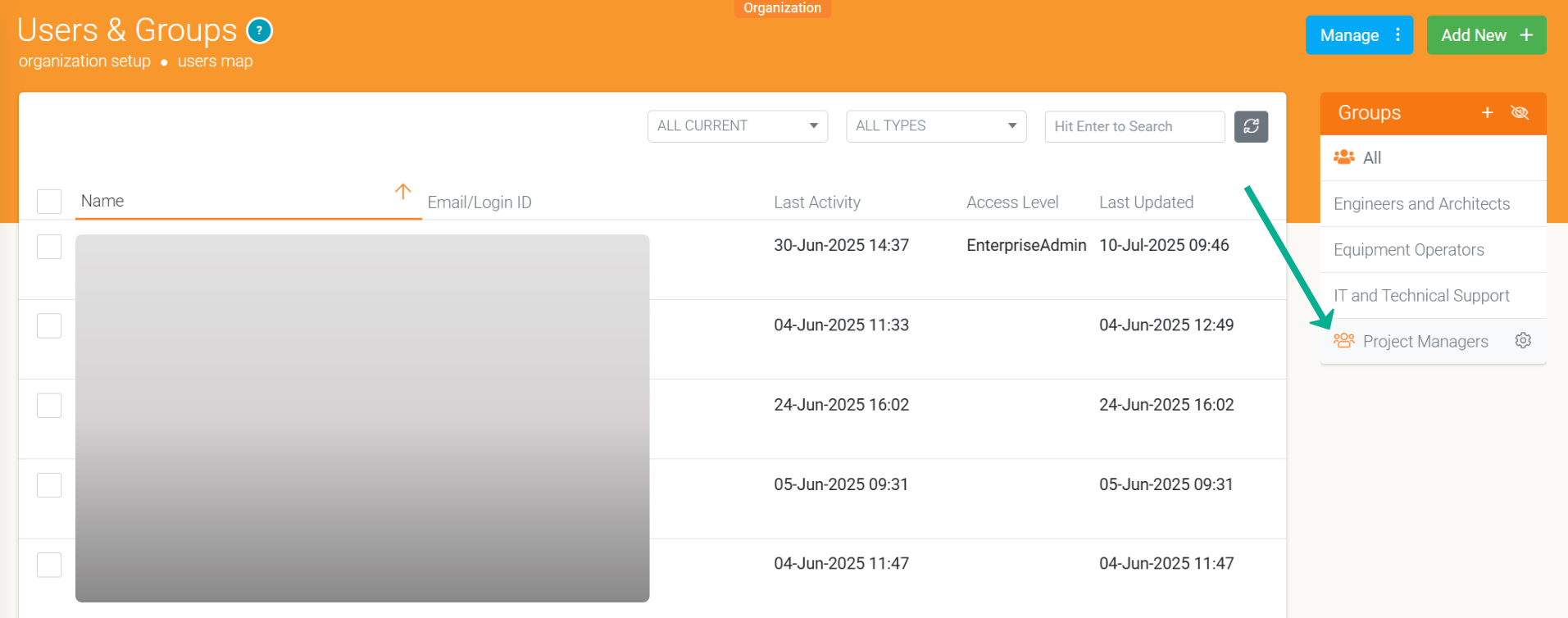
Once done, you can check our platform under the “Groups” section to see that the group has been correctly provisioned and users have been correctly assigned to the respective group created in Azure.
Assigning Folders to Azure Active Directory Users
- This requires a custom attribute name of: urn:ietf:params:scim:schemas:extension and the value for folders must be a comma-separated list such as “Folder 1, Folder 2”.
- This property then needs the list combined with the Split() Expression.
- The steps to do this are outlined below.
In the Provisioning section of the Enterprise Application, there is an option to Update credentials, select this option.
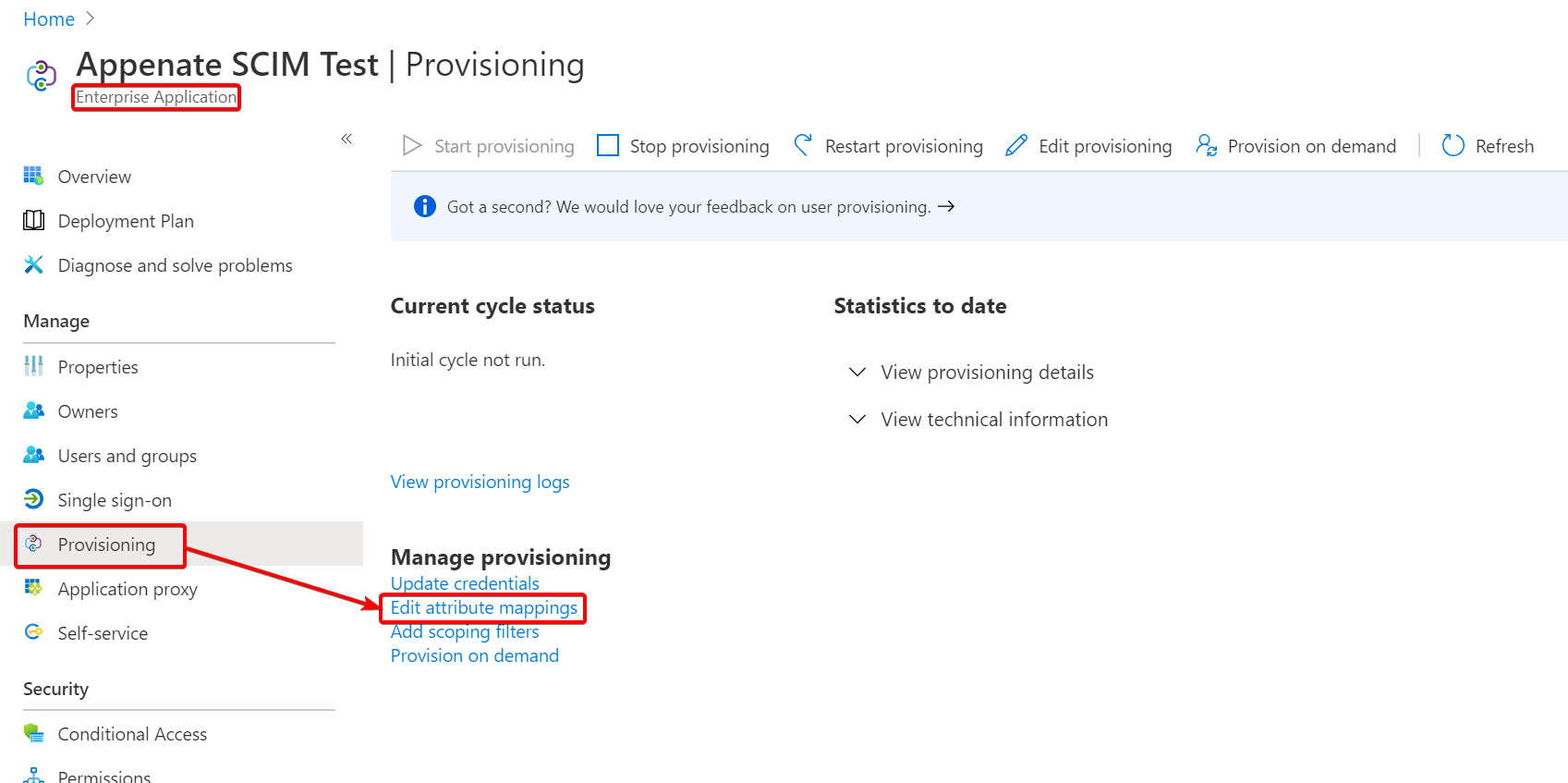
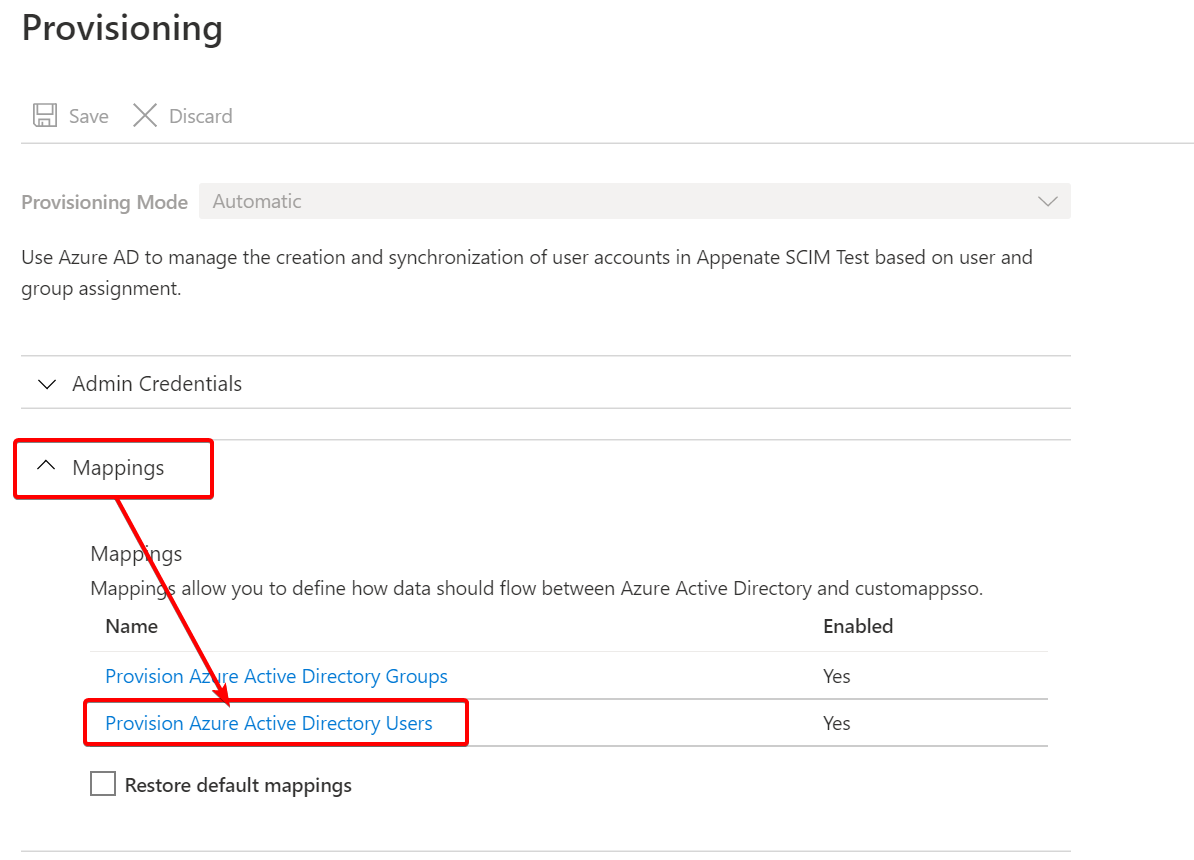
Give the page some time to load, then select Mappings > Provision Azure Active Directory Users.
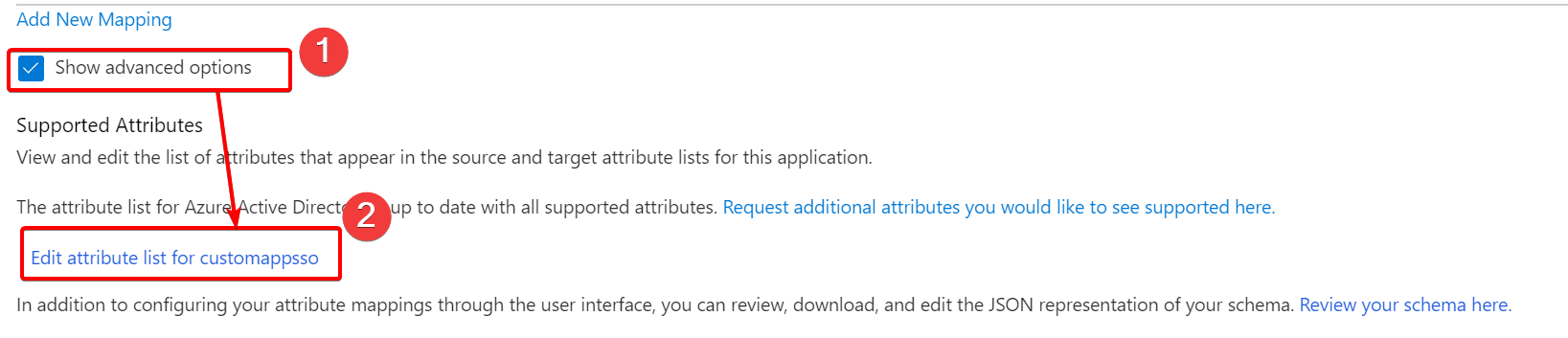
Below the list of mappings, click the link Show advanced options. This will then display a previously hidden section which will have a link Edit attribute list for {{Your applications’ name}}. Click this link. In the screenshot below our applications’ name is “customappsso”.
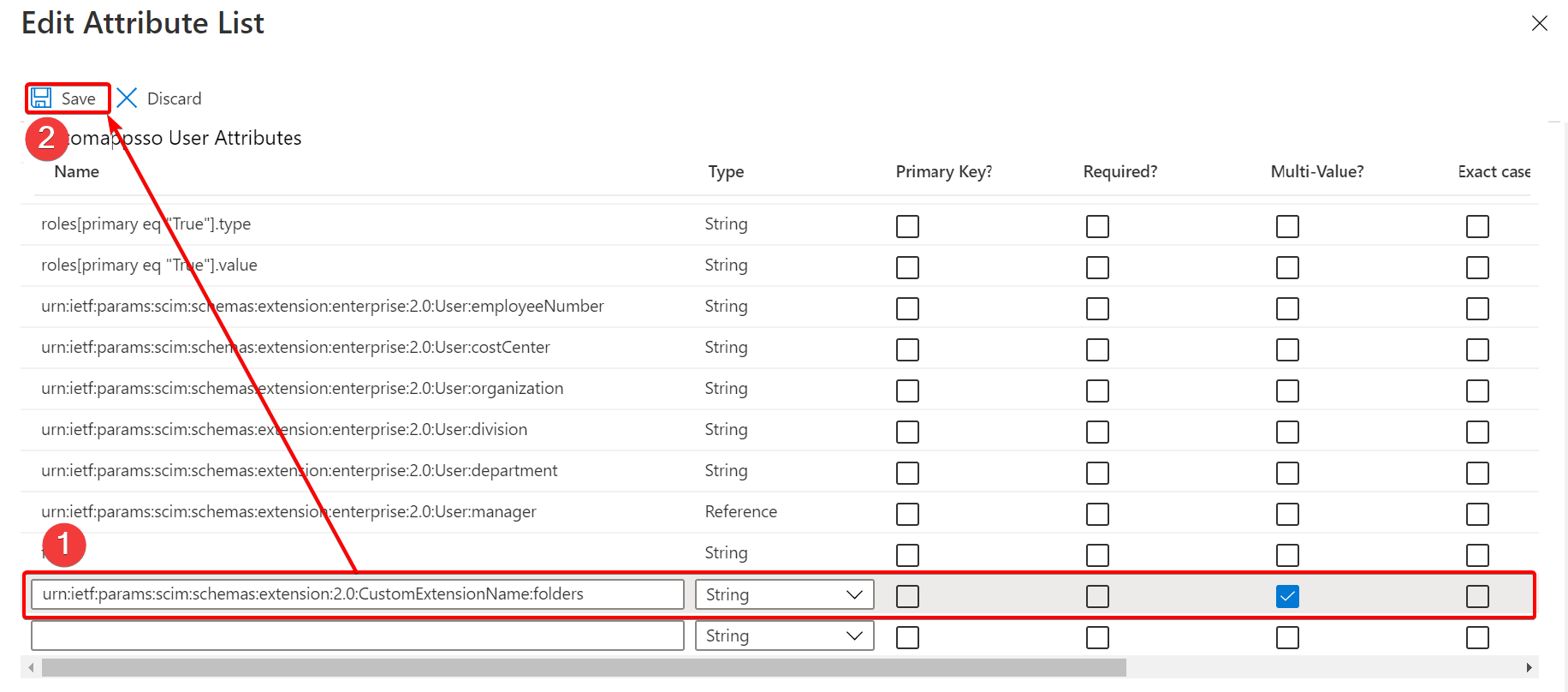
In the table that appears, add a new Attribute with the following details:
- Name: urn:ietf:params:scim:schemas:extension:2.0:CustomExtensionName:folders
- Type: string
- Multi-Value?: checked
When done, click Save at the top of the page and then Yes to confirm your changes.
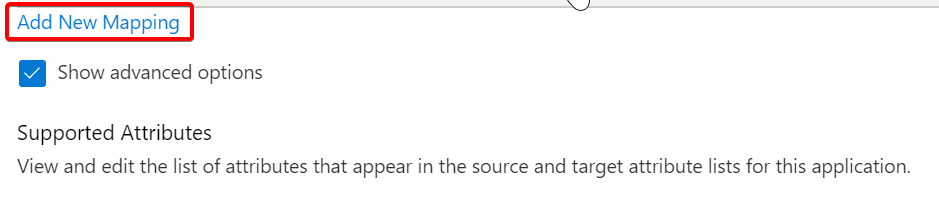
You now need to add a new mapping for the attribute you just created. Click on Add New Mapping on the page that you are returned to. The link is just above the Show advanced options that you clicked previously.
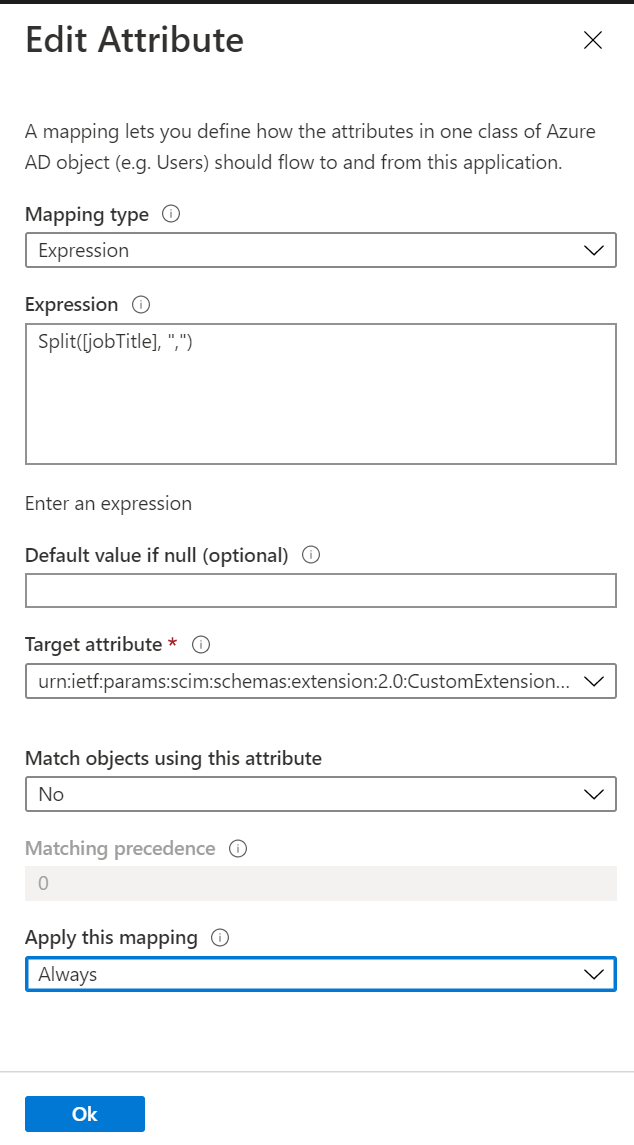
In the popup window, you will need to map one of the attributes of the Azure AD user to the newly created attribute for SCIM. The attribute on the Azure user needs to have a comma separated list of folder GUIDs or external IDs the user should have access to. See below for an example. We have used the “JobTitle” attribute to store this, but you can use any attribute on your user, including any custom attributes you may have created.
Within the Edit Mapping page popup window you need to set the attribute mapping as follows:
- Mapping type: Expression
- Expression: Split([SourceAttribute], “,”)
- Default value if null (optional): A default folder to use, but this is optional.
- Target attribute: urn:ietf:params:scim:schemas:extension:2.0:CustomExtensionName:folders
- Match objects using this attribute: No
- Apply this mapping: We recommend setting this to Always, but if you have a business case that requires another setting, then it can be changed.
Below is an example of how we configured it:
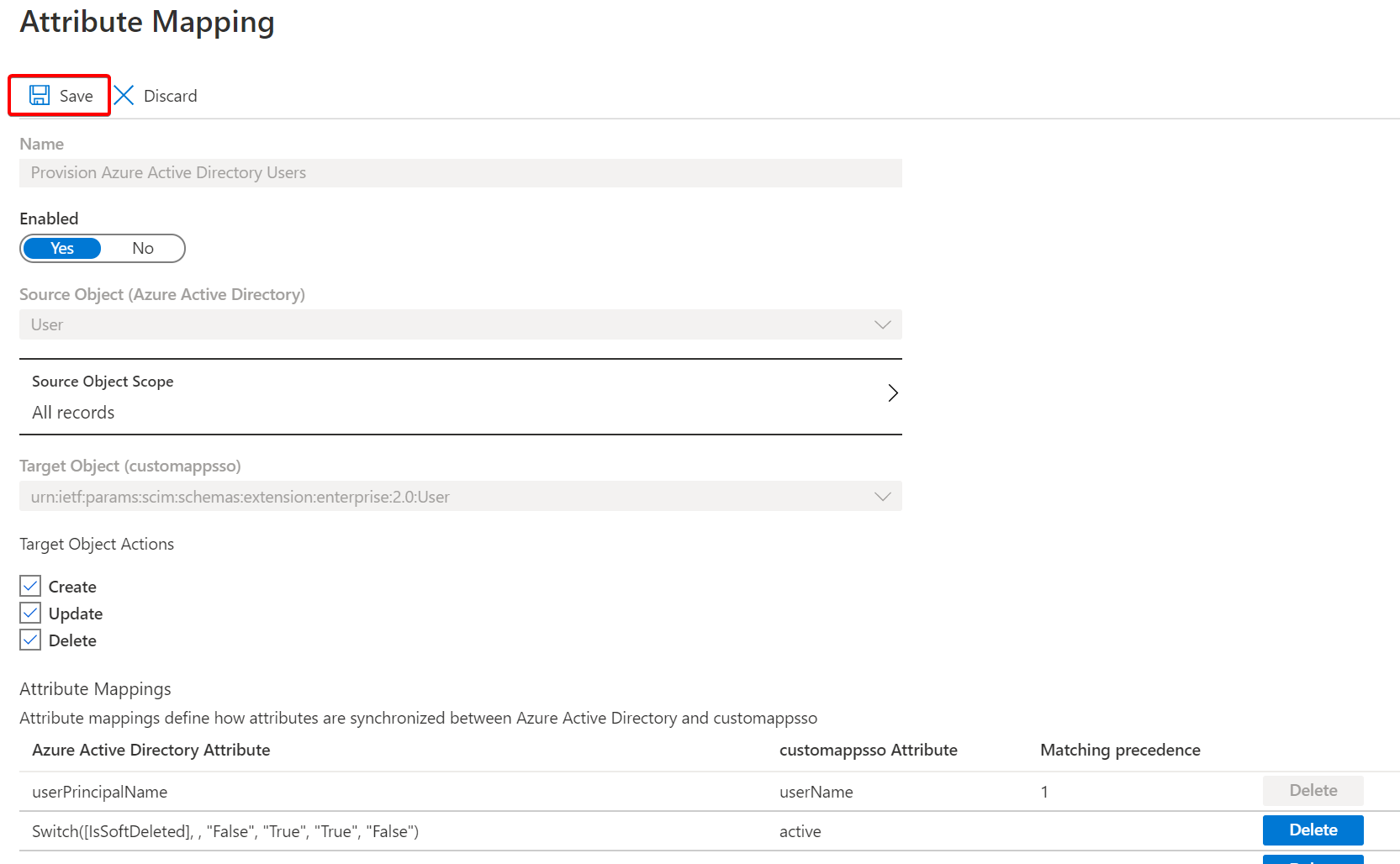
Click Ok to save the changes, then be sure to also Save at the top of the page.
Assigning Website Access to Azure Active Directory Users
By default, users that are provisioned via Azure Active Directory will only be granted app login access. If you wish to assign web portal access, then you must specify one of the following Role values on the Azure Active Directory user’s application profile:
- ReadOnly
- User
- Admin
- EnterpriseAdmin
The capabilities of the above roles can be seen on the hints for Access Roles as found on the Edit User page of our platform.
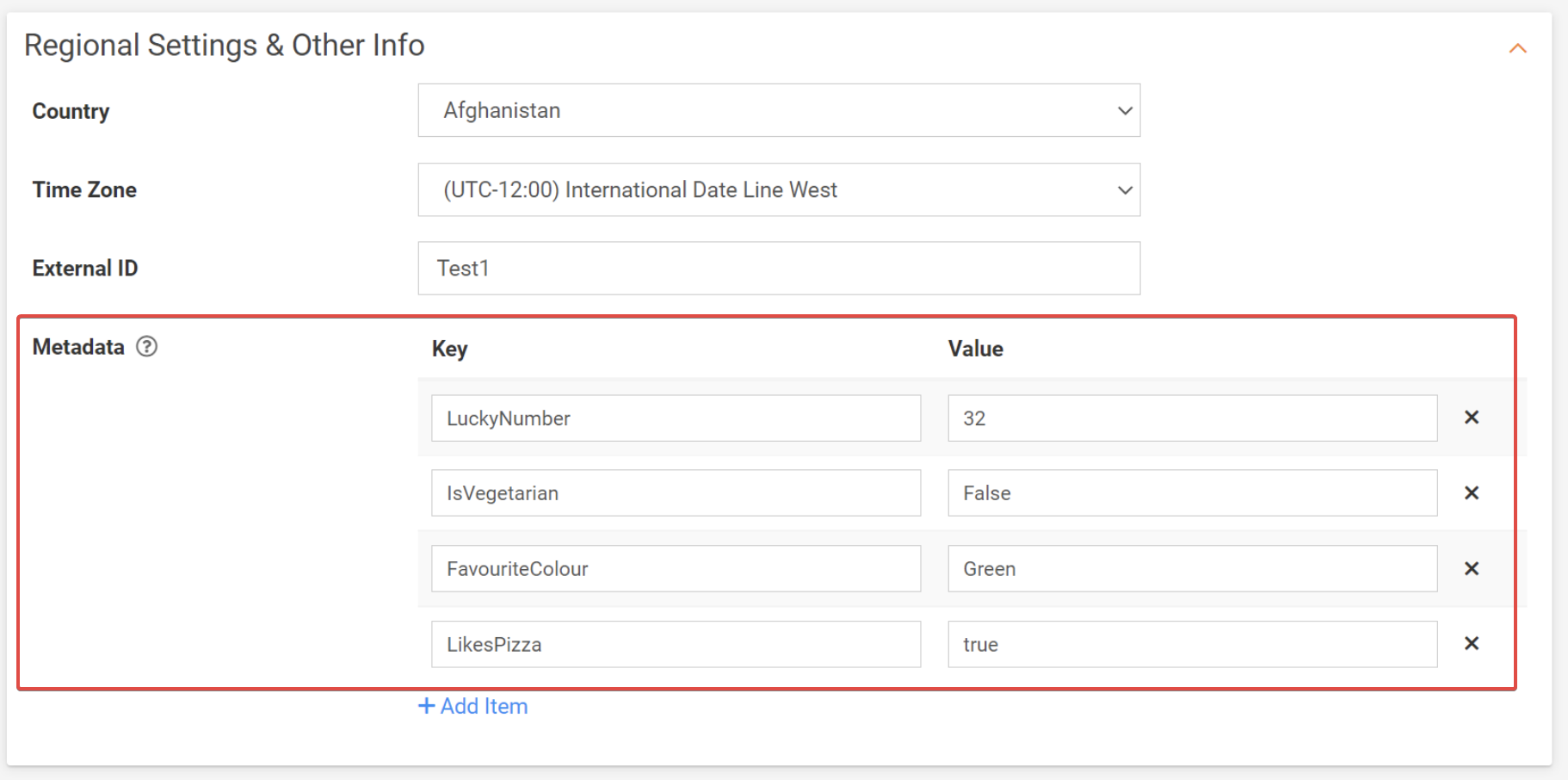
Assigning User Metadata to Azure Active Directory Users
This requires a custom attribute name of urn:ietf:params:scim:schemas:extension:2.0:Metadata:{{MetaDataKey}} for each metadata item you want to use. In the Provisioning section of Enterprise Application, there is an option to Update credentials, select this option.
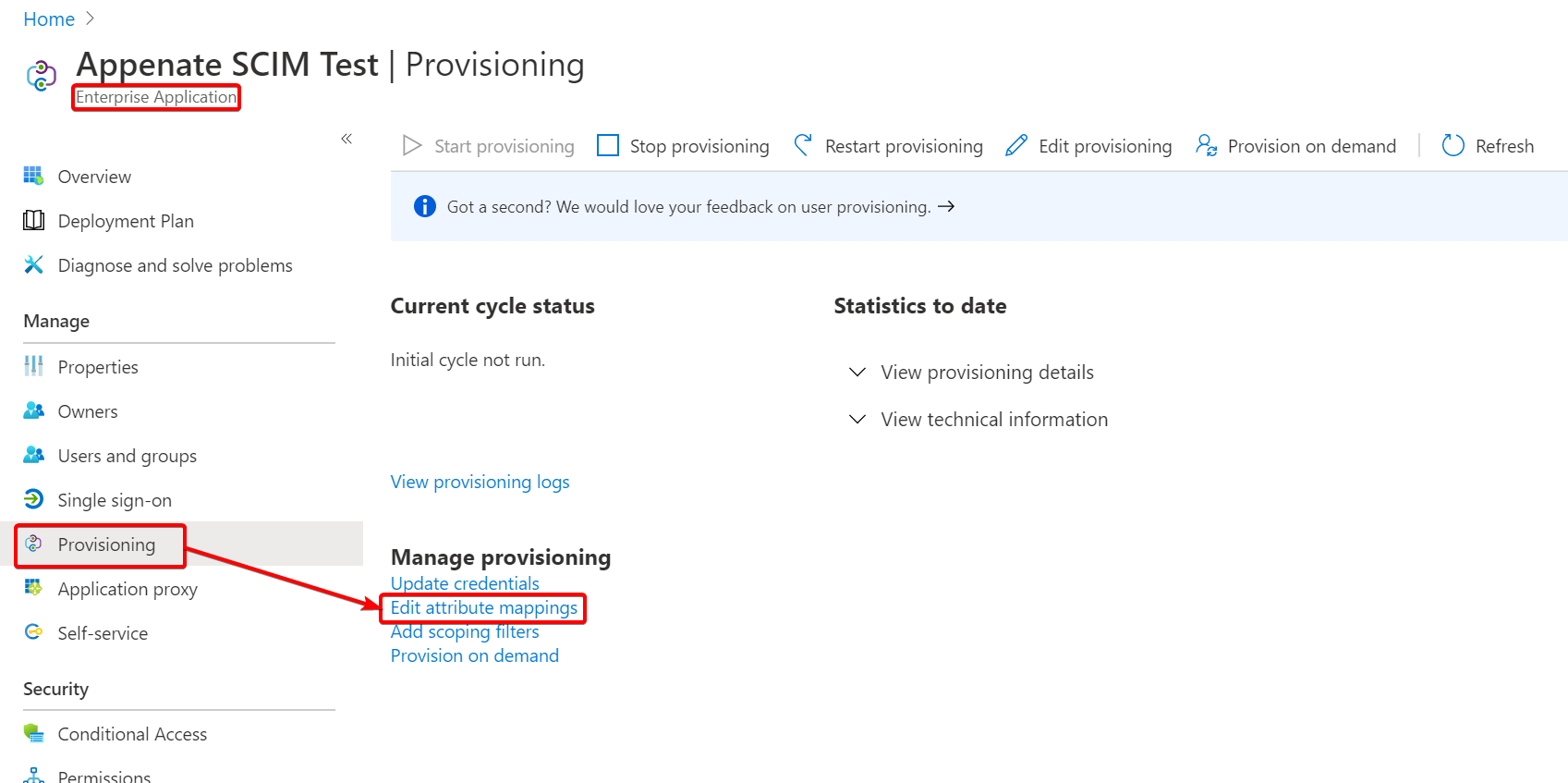
Give the page some time to load, and then select Mappings > Provision Azure Active Directory Users.
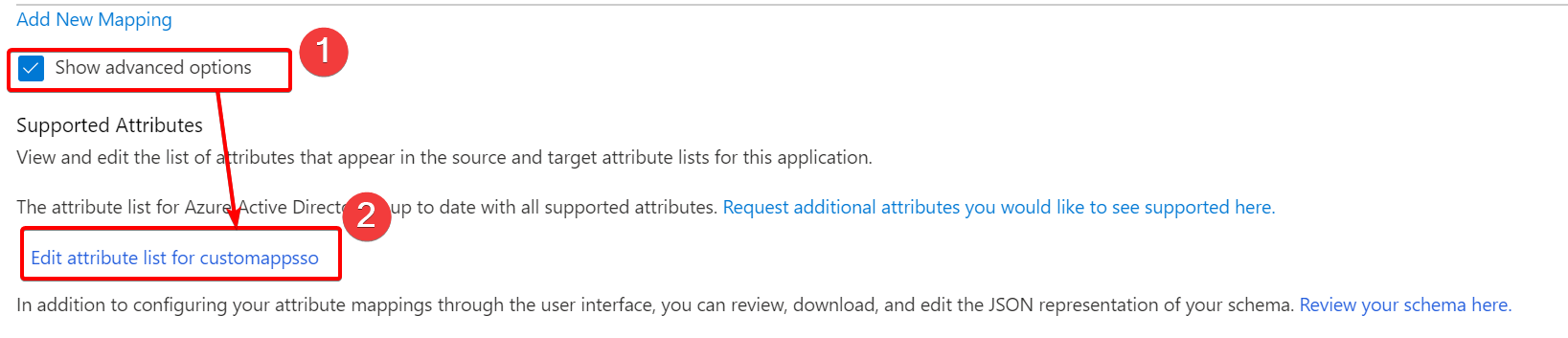
Below the list of mappings, click the link Show advanced options. This will then display a previously hidden section which will have a link Edit attribute list for {{Your applications’ name}}. Click this link. In the screenshot below our applications’ name is “customappsso”.
In the table that appears, add a new Attribute with the following details:
- Name: urn:ietf:params:scim:schemas:extension:2.0:Metadata:{{MetadataKey}}
- Type: string (You can set others, but our platform will convert it to a string which may change the value)
When done, click Save at the top of the page and then Yes to confirm your changes. Below are some example metadata keys:
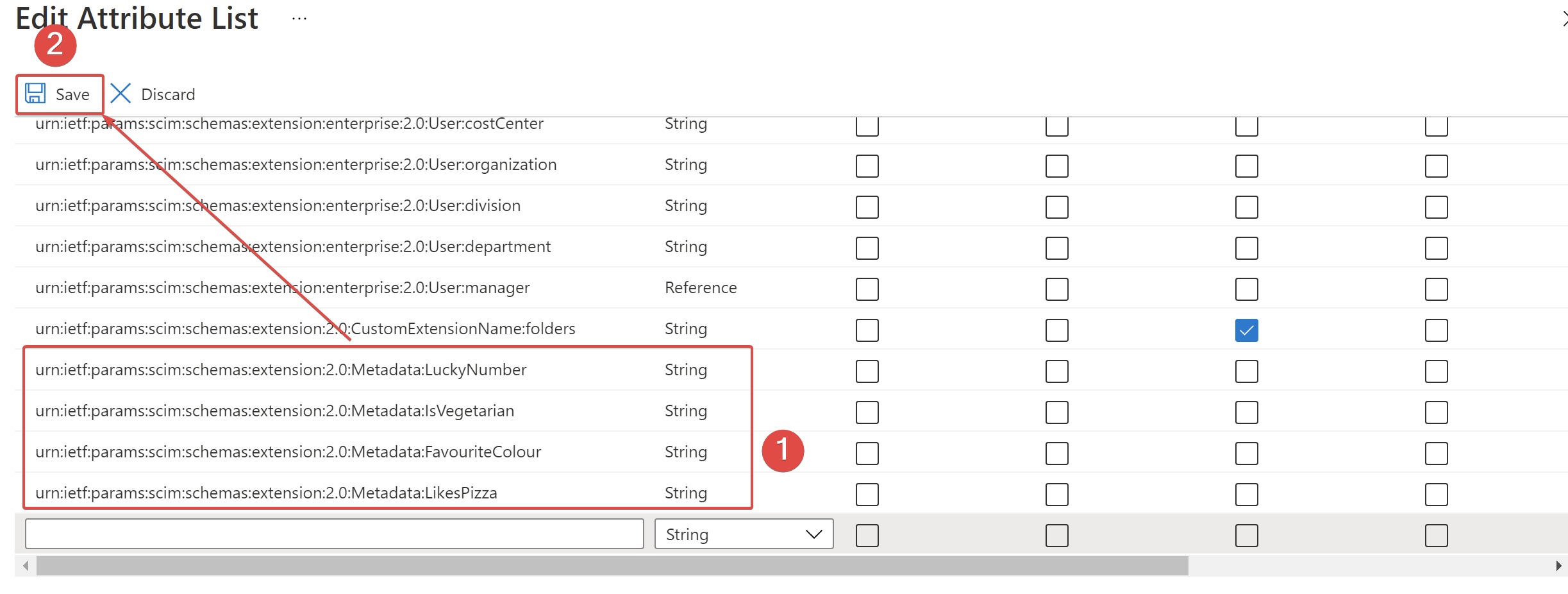
You now need to add a new mapping for the attribute(s) you just created. Click on Add New Mapping on the page that you are returned to. The link is just above the Show advanced options that you clicked previously.
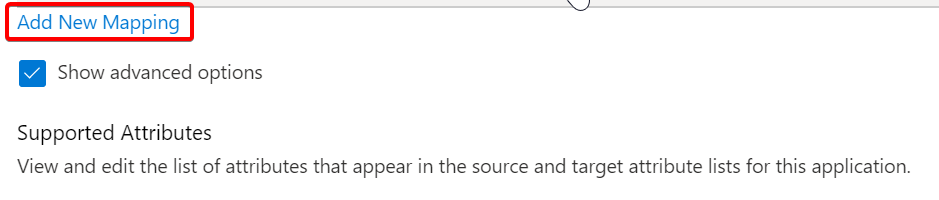
In the popup window, you will need to map one of the attributes of the Azure AD user to the newly created attribute for SCIM.
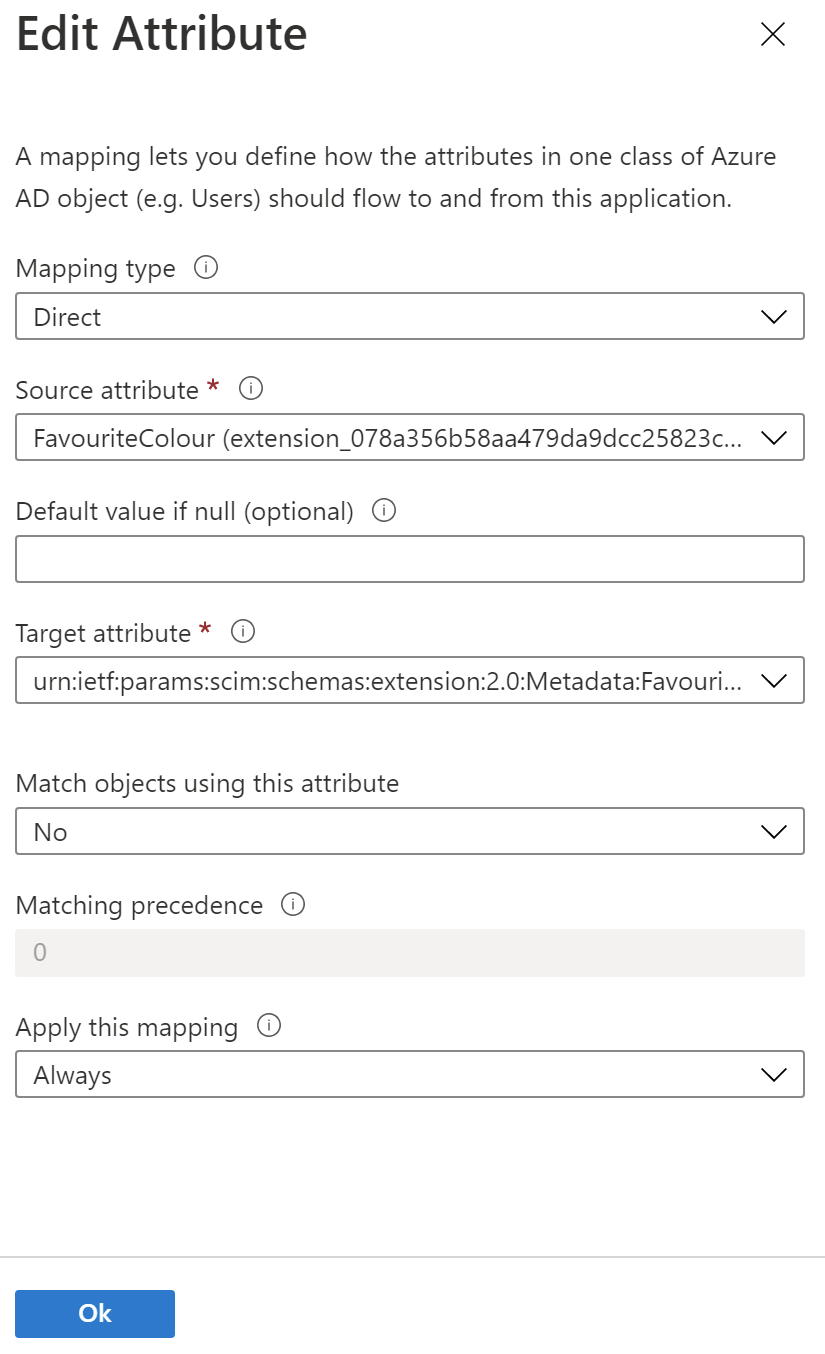
Within the Edit Mapping page popup window you need to set the attribute mapping as follows:
- Mapping type: Direct
- Source attribute: The attribute in Azure AD you are mapping from (We are using extension attributes in the screenshots, but you could use any attribute supported by Azure AD).
- Default value if null (optional): A default value to use, but this is optional.
- Target attribute: urn:ietf:params:scim:schemas:extension:2.0:Metadata:{{MetadataKey}}
- Match objects using this attribute: No
- Apply this mapping: We recommend setting this to Always, but if you have a business case that requires another setting, then it can be changed.
Below is an example of how we configured it for one of our mappings:
Click Ok to save the changes, then be sure to also Save at the top of the page.
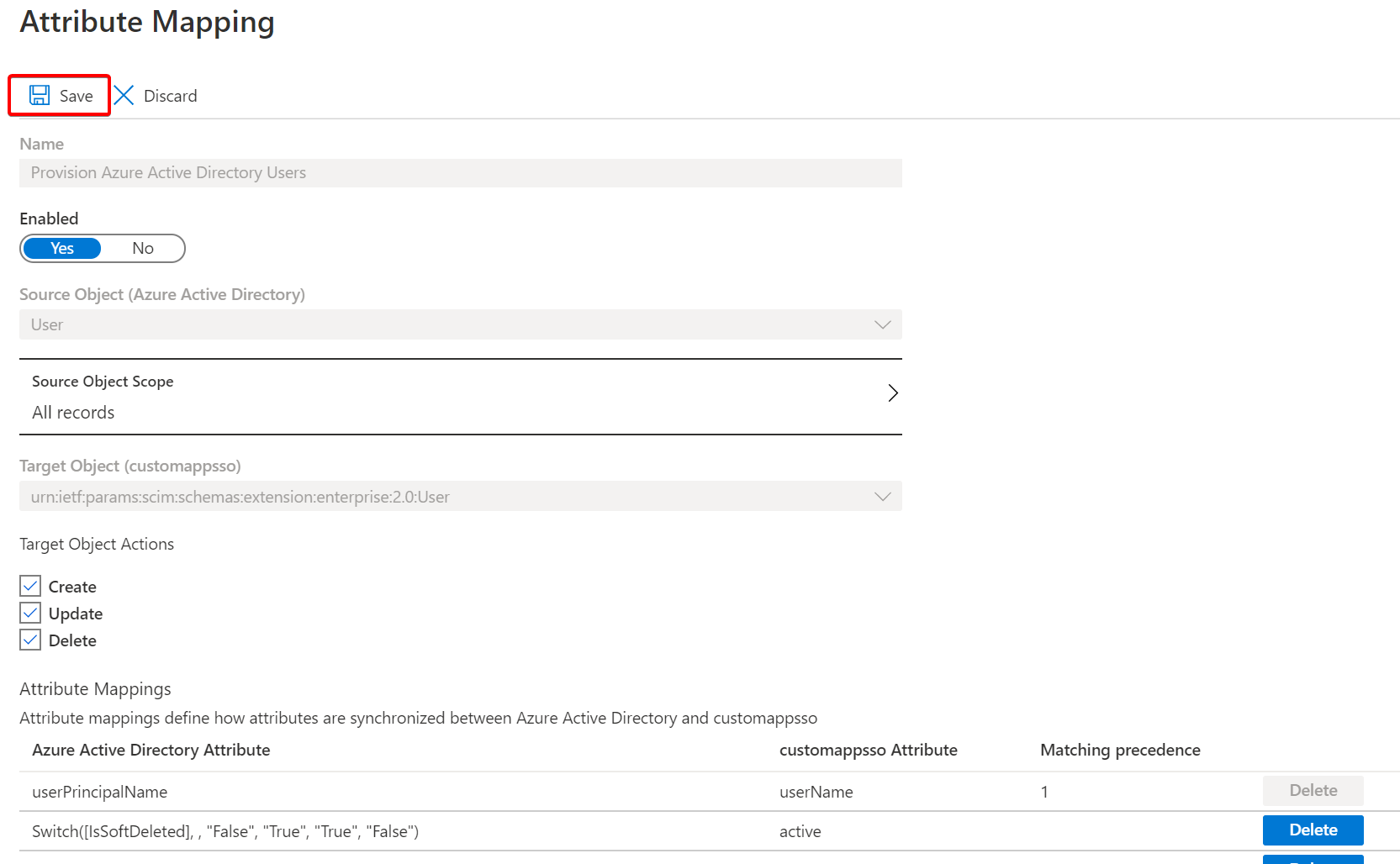
When Azure AD does its next synchronization with our platform, the attributes will be populated into the user’s metadata.
Toggle User Authentication Method
Once Azure AD is enabled, all users will be authenticated externally unless disabled. However, for temporary or external users that are not registered in Azure AD, you can choose to use our platform’s built-in authentication instead.
Toggling between Azure AD and Built-In authentication for a user can be achieved when editing a user’s details (Organization&Users > Users&Groups) under the Access&Security > Login Method dropdown.
Was this article helpful?
That’s Great!
Thank you for your feedback
Sorry! We couldn't be helpful
Thank you for your feedback
Feedback sent
We appreciate your effort and will try to fix the article